Absences
Absences let you record the days you will not see patients. Days marked as an absence automatically block the creation of appointments on those dates.
View absences
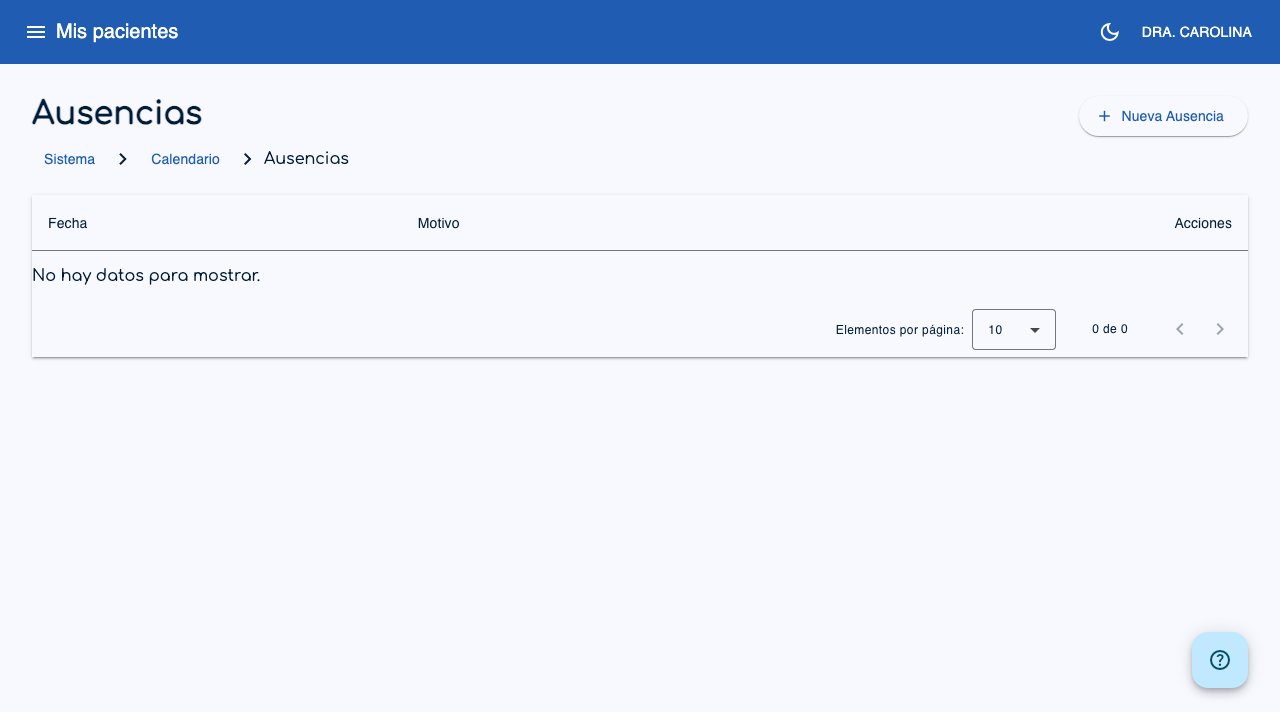
Go to Calendar > Absences from the side menu.
 1
1
- New Absence (1): Click to record a new absence.
The table shows:
- Date: Day of the absence (format: "Monday, DD/MM/YYYY").
- Reason: Reason for the absence (or "No reason given" if none was given).
Record an absence
- Click New Absence to open the form.
- Select the Date in the calendar.
- Optionally, enter a Reason (e.g.: "Vacation", "Holiday").
- Click Create.
Tip
Dates that already have an absence recorded appear blocked in the date picker when you create appointments.
Delete an absence
- In the list of absences, click the Delete icon of the absence you want to remove.
- Confirm the deletion in the confirmation dialog.
Important
When you delete an absence, the appointments previously blocked for that date are not restored automatically. You will need to create them manually.