Treatments
Treatments let you group several consultations under a single care plan. This is ideal for procedures that require multiple sessions, such as dental treatments, physical therapy, or psychotherapy.
What treatments are for
- Progress tracking: See how many sessions were completed out of the estimated number.
- Organization: Group related consultations under a clear title (e.g.: "Root canal treatment tooth 14").
- Context in appointments: When scheduling an appointment, you can link it to an ongoing treatment so the team knows the reason for the visit.
Who can see treatments?
All users (professional, assistant, receptionist) can see the title, status, and progress of treatments. However, the clinical description is only visible to the professional. This lets administrative staff manage appointments with context, without accessing sensitive medical information.
How to access a patient's treatments
- Go to Patients from the side menu.
- Find the patient in the list.
- Click the patient's Treatments icon (healing icon).
What you will see on the treatments screen
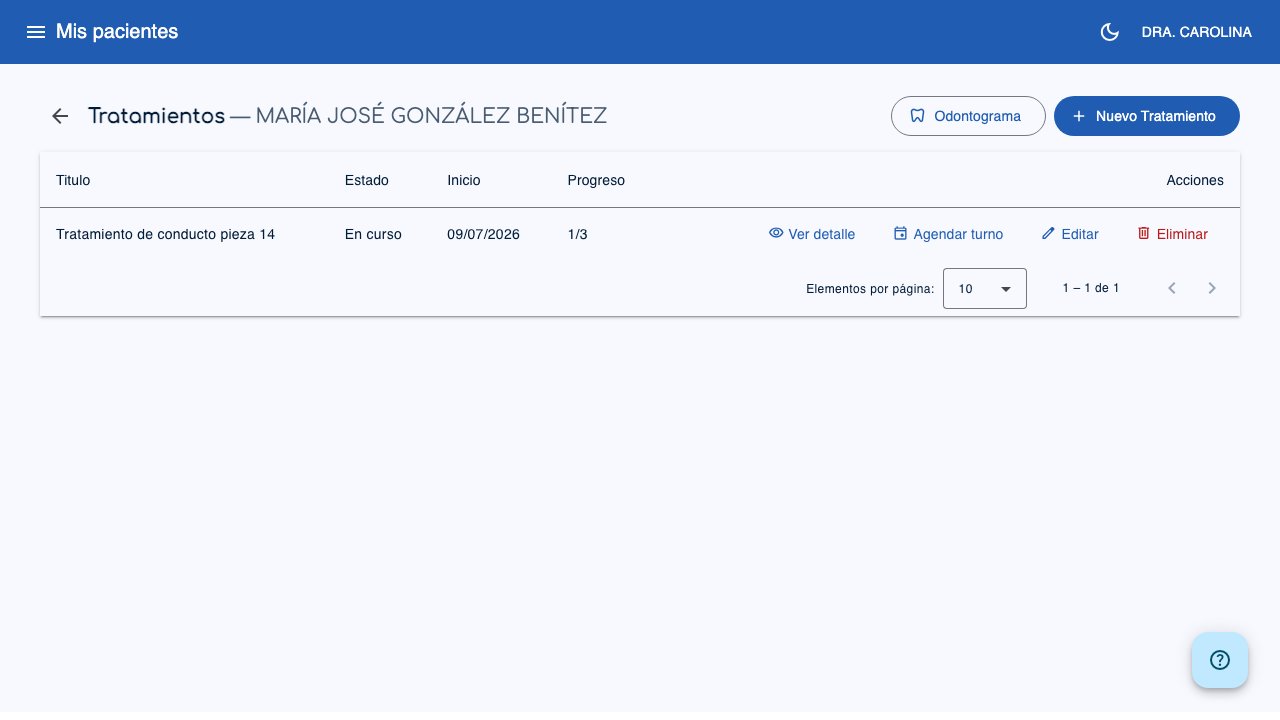 1
2
3
1
2
3
- New Treatment (1): Button to create a new treatment (professional only). If the patient has the dental feature enabled, you will also see a Dental Chart button next to it.
- Status (2): Shows whether the treatment is "In progress", "Completed", or "Abandoned".
- Progress (3): Number of sessions completed out of the estimated number (e.g.: "1/3").
Table columns
| Column | Description |
|---|---|
| Title | Descriptive name of the treatment |
| Status | In progress, Completed, or Abandoned |
| Start | Start date of the treatment |
| Progress | Sessions completed / sessions estimated |
| Actions | View detail; Schedule appointment (if the appointments feature is enabled); Edit or delete (professional only) |
Create a treatment
- From the patient's list of treatments, click New Treatment.
-
Complete the form:
-
Title (required): Name of the treatment (e.g.: "Right knee rehabilitation", "Cognitive behavioral therapy").
- Description: Details of the clinical plan. This field is private and only visible to the professional.
- Status: Defaults to "In progress". You can change it to "Completed" or "Abandoned".
- Estimated sessions: The number of sessions you expect to need. This lets you track progress.
- Scheduling frequency: How often the sessions repeat (daily, weekly, biweekly, or monthly). It is used to calculate the next suggested appointment.
- Start date: Defaults to today's date.
-
End date: Optional. It is filled in when the treatment finishes or is abandoned.
-
Click Create.
Tip
Use descriptive titles that include key details: "Root canal treatment tooth 14" is more useful than just "Dental treatment". This helps administrative staff quickly identify what the treatment is about when scheduling appointments.
Link clinical records to a treatment
When you create a new clinical record, you will see a Treatment selector at the top of the form. Select the treatment that this consultation belongs to.
- Only the patient's in progress treatments appear.
- It is optional: you can create consultations without linking them to any treatment.
- The progress (sessions completed) updates automatically when you link clinical records.
Link appointments to a treatment
When creating an appointment, if the patient has ongoing treatments, an optional selector appears to link the appointment to a treatment.
- This lets administrative staff see the context of the appointment (treatment title and progress).
- It does not expose sensitive clinical information: only the title, status, and number of sessions are shown.
View progress and schedule the next appointment
Click the title of a treatment (or click View detail from the actions menu) to open its tracking screen:
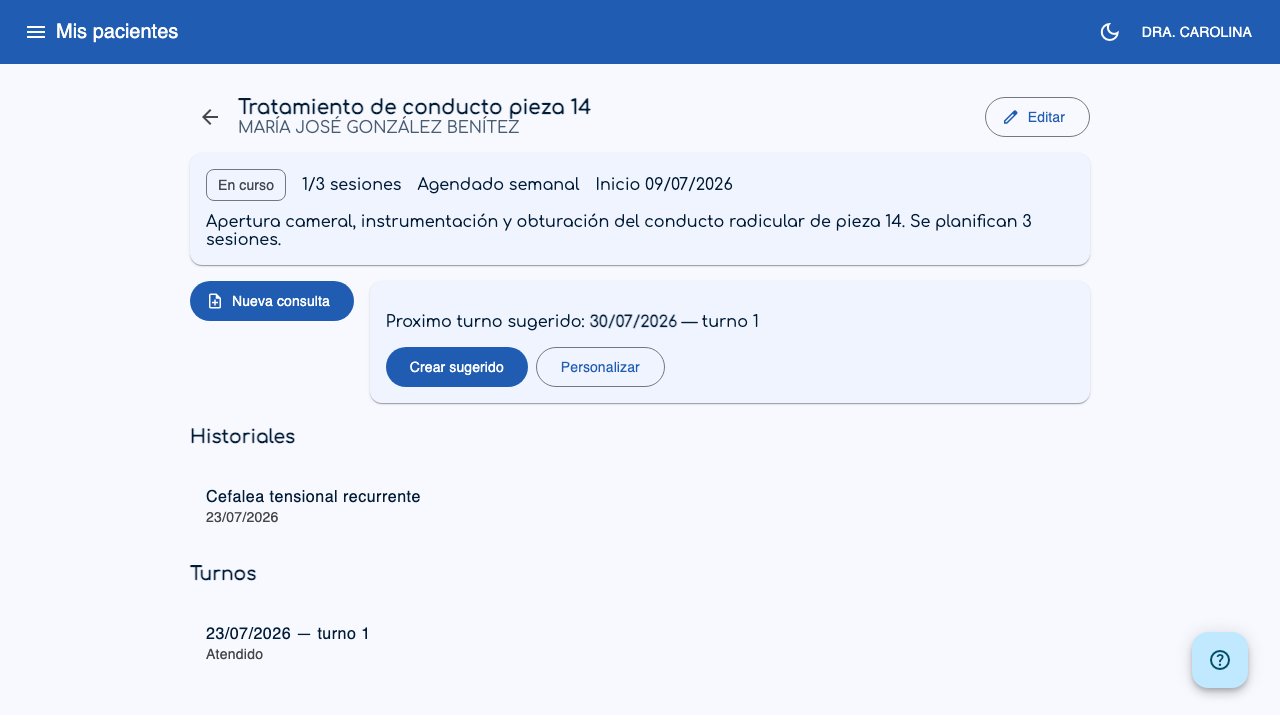
- Records and Appointments: Two separate lists with all the consultations and appointments linked to this treatment, so you can follow the patient's progress at a glance.
- Next suggested appointment: Based on the configured frequency (daily, weekly, biweekly, or monthly), the system calculates and proposes the date of the next appointment. If that date falls on a recorded absence or the slot is already taken, you are warned and the button to create it directly is disabled.
- Create suggested: Schedules the appointment right away, with the reason and notes filled in automatically (treatment title and session number, e.g.: "Root canal treatment tooth 14 - session 3"), with no extra editing step. Only enabled if the suggested date is available.
- Customize: Opens the appointment form with the same data pre-filled, so you can edit it before saving (useful if the suggested date isn't available, or if you want to change something).
- If the treatment has no appointments yet, you will instead see a Schedule first appointment button.
Edit a treatment
- In the list of treatments, click Edit.
- Change the data you need.
- Click Save.
Tip
When a treatment ends, change its status to Completed and fill in the end date. This keeps a clear record of the patient's treatment history.
Delete a treatment
- In the list of treatments, click Delete.
- The system will ask you to confirm.
Important
When you delete a treatment, the consultations and appointments that were linked are not deleted. They are only unlinked from the treatment. Clinical records are kept intact.
Treatment statuses
| Status | Meaning |
|---|---|
| In progress | The treatment is active and sessions are being carried out |
| Completed | The treatment finished successfully |
| Abandoned | The patient abandoned the treatment before completing it |