Odontogram
The odontogram lets you record a patient's dental status tooth by tooth: cavities, fillings, crowns, missing teeth, and other findings, with a date-based history.
Availability
The odontogram is only available if your account has the dentistry feature enabled. If you do not see this option, contact support.
How to access
- Go to Patients from the side menu.
- Find the patient in the list.
- Click the patient's Dental Chart icon (tooth).
What you will see on the screen
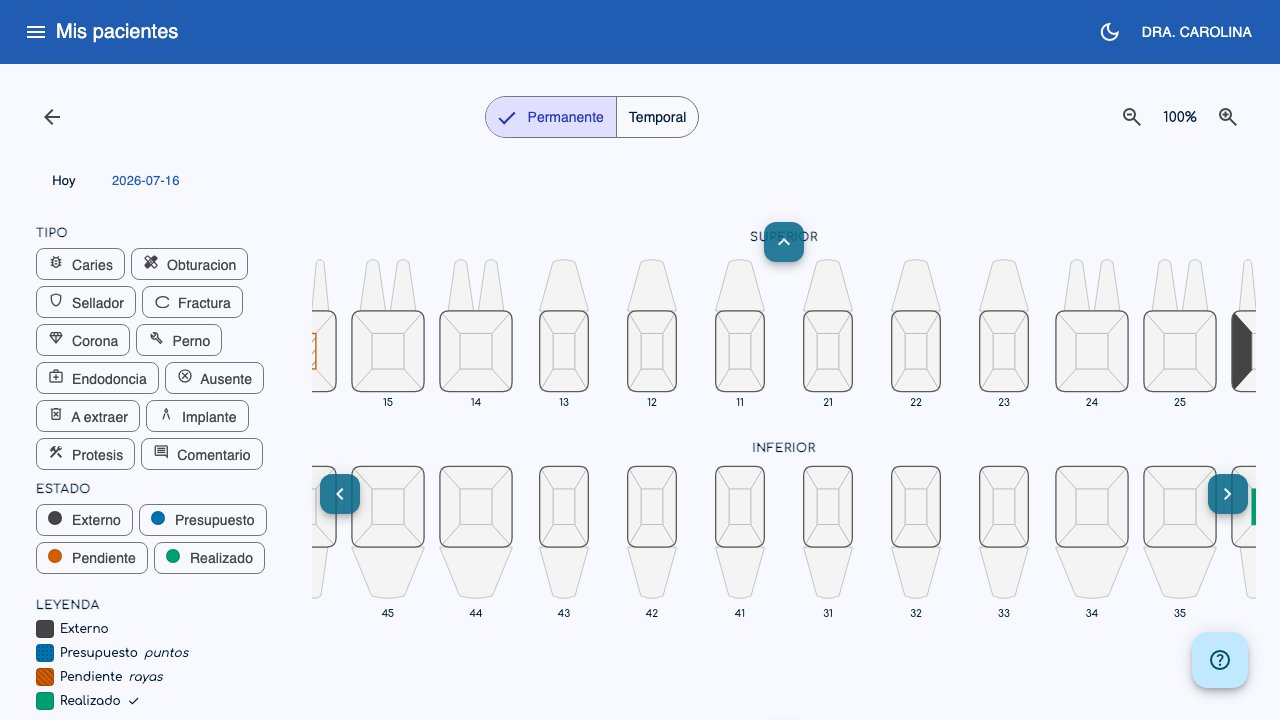
- Dentition: Switch between Permanent (adults) and Primary (baby teeth) depending on the patient.
- Teeth: The upper and lower arches show each numbered tooth. When you hover the mouse (or long-press on the phone) over a tooth, you will see a summary of its findings.
- Zoom: Use the zoom in / zoom out buttons to see better. Use the pan arrows around the odontogram to move around without needing to drag (the default zoom level doesn't always fit the whole screen).
Record a finding
- In the side panel (or the top panel on the phone), choose the Type of finding: cavity, filling, crown, missing, etc.
- Choose the Status: External, Estimate, Pending, or Done.
- Tap the tooth (or an area of the tooth) where you want to record the finding.
The finding appears immediately on the tooth, with a color based on the status you chose. The Legend in the side panel shows which color and pattern corresponds to each status.
Tip
You can record several findings on the same tooth (for example, a cavity in one area and a filling in another).
Delete findings
- Click Delete in the side panel.
- Tap the areas you want to remove (you can select several).
- Click Delete selected to confirm, or Clear selection to deselect everything without leaving delete mode.
- To leave delete mode without deleting anything, click the button again — it now reads Cancel delete.
History by date
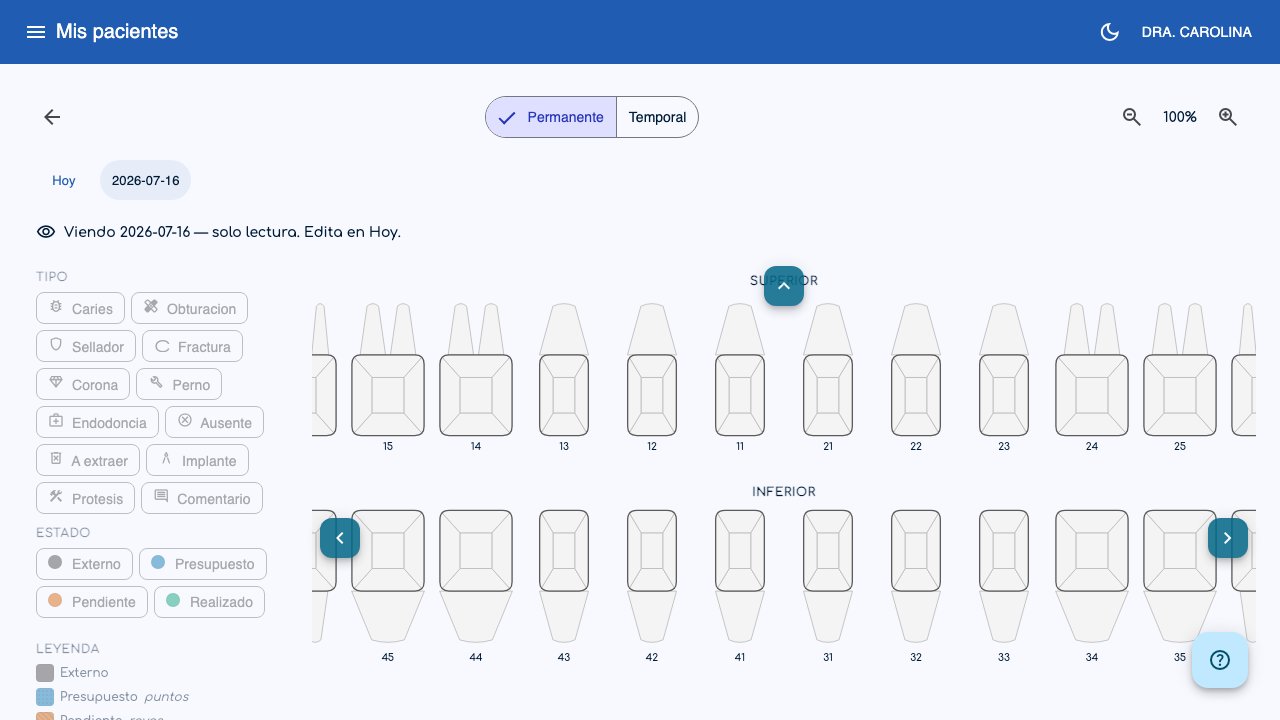
At the top you will see a timeline with Today and the earlier dates on which changes were recorded.
- Click a past date to see what the odontogram looked like at that moment.
- When viewing a past date, a read only notice appears: you cannot make changes. To make changes, go back to Today.
Why can't I edit past dates?
This keeps a faithful record of the patient's dental progress over time, just like a clinical record.