Reports
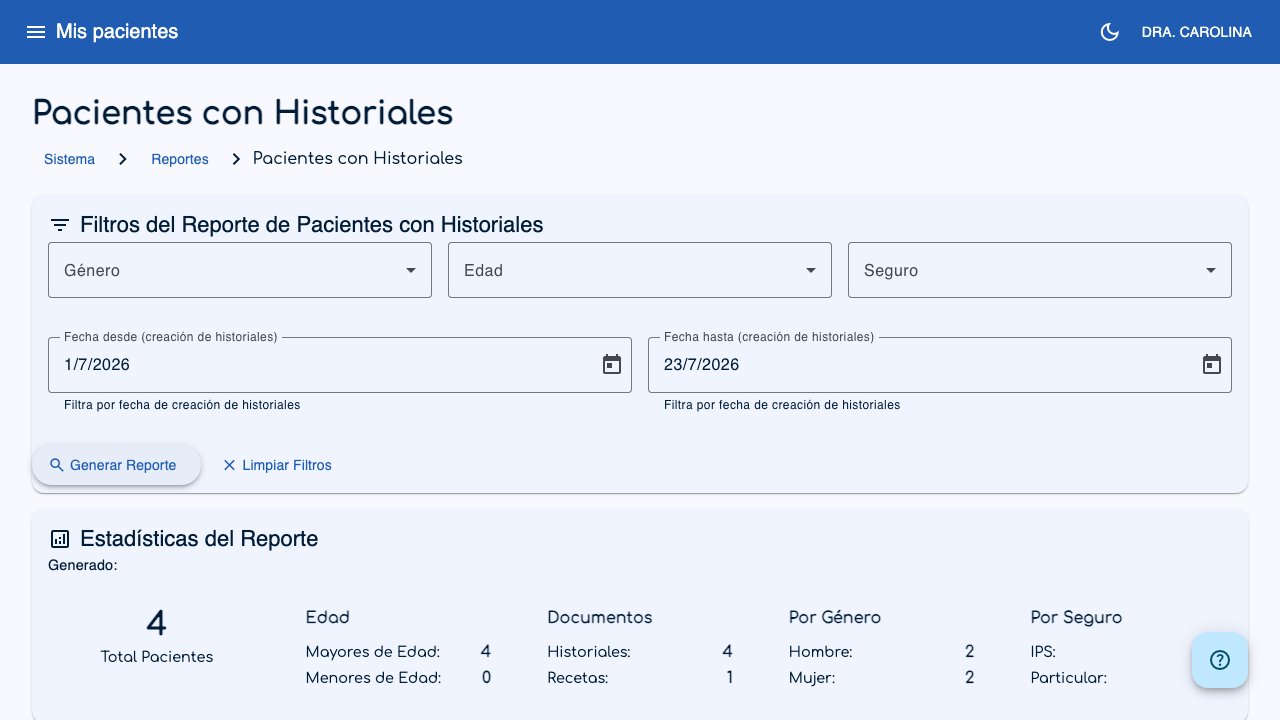
Reports give you statistics and summaries of the activity in your practice. You can filter by gender, age, health insurance and date range to get the information you need.
Open Reports from the side menu.
 1
2
3
4
1
2
3
4
- Gender filter (1): Filters patients by gender (Male, Female, Other).
- Age filter (2): Filters by age range (over or under 18 years).
- Insurance filter (3): Filters by health insurance.
- Generate Report (4): Runs the search with the filters you selected.
How to generate a report
- Go to Reports from the side menu.
- Select the type of report (by patients or by insurance).
- Optionally, apply filters to narrow down the results.
- Click Generate Report.
- The results appear on the screen. You can expand each patient to see their consultations.
Tip
If you do not apply any filter, the report shows all your patients.
Available reports
Patients Report
Shows consolidated information about your patients: demographic data, number of consultations and the details of each clinical record. See the Patients with Records.
Clinical Records by Insurance Report
Creates a report of clinical records grouped by health insurance. This is useful for billing tasks with insurance companies. See the Records by Insurance.
Export
You can download any report to use in Excel or to print:
- Excel (.xlsx): Best for opening the file directly in Excel or Google Sheets.
- CSV (.csv): Plain text format that works with any spreadsheet program.
To export, click the menu button (:material-dots-vertical:) and select the format you want.