Patients
The patients section lets you register and manage the information of all your patients.
Patient list
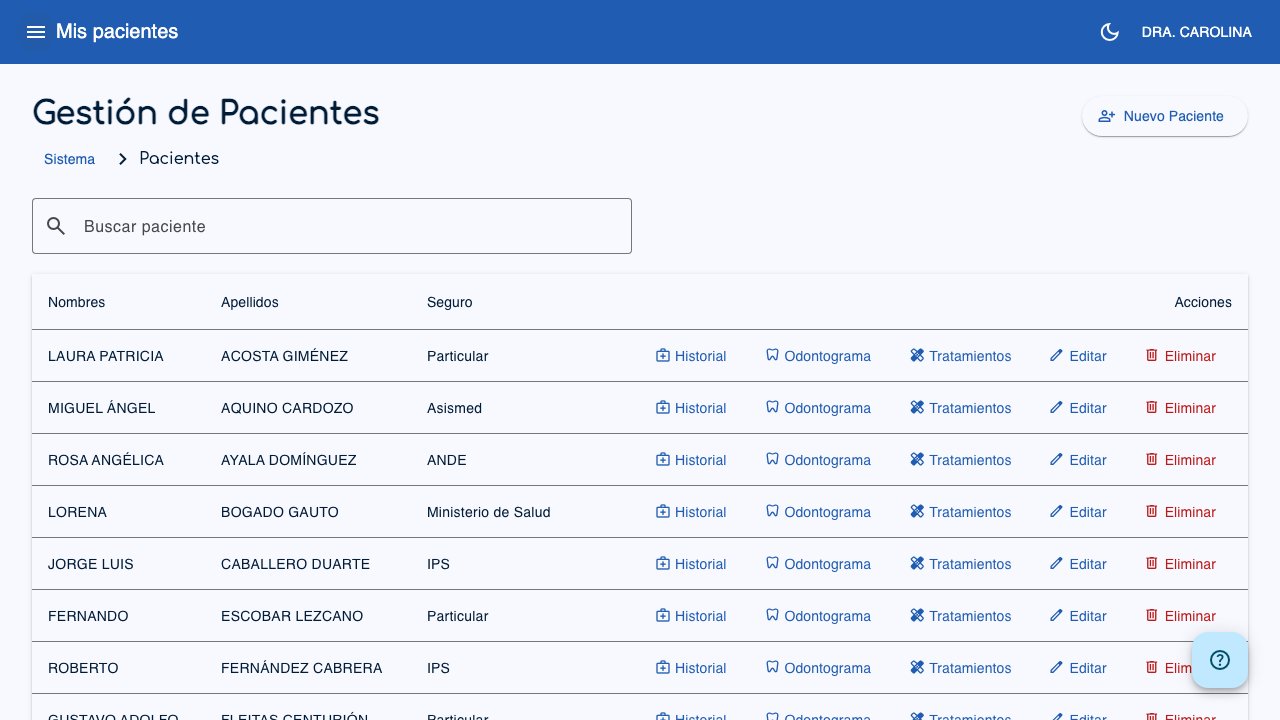
When you open Patients from the side menu, you will see the list of all your patients.
 1
2
3
4
1
2
3
4
- Search bar (1): Search for patients by first name, last name, or ID document.
- New Patient (2): Create a new patient.
- Record (3): Open the patient's clinical record.
- Actions (4): Menu to edit or delete.
Other options for each patient
Depending on your account, you may also see icons for treatments and, if that feature is enabled for you, odontogram (the Dental Chart icon).
The table shows the following columns:
- First name: The patient's first name(s).
- Last name: The patient's last name(s).
- Insurance: The patient's health insurance.
- Actions: Menu with options to edit or delete.
Search patients
Use the search bar at the top of the list to find patients by first name, last name, or ID document. Type at least 2 characters and press Enter to search.
To clear the search, click the X icon next to the search field.
Pagination
At the bottom of the table you can change the number of items per page (5, 10, 20, or 50) and navigate between pages.
Create a patient
- Click the New Patient button in the top-right corner.
- Complete the form with the patient's information:
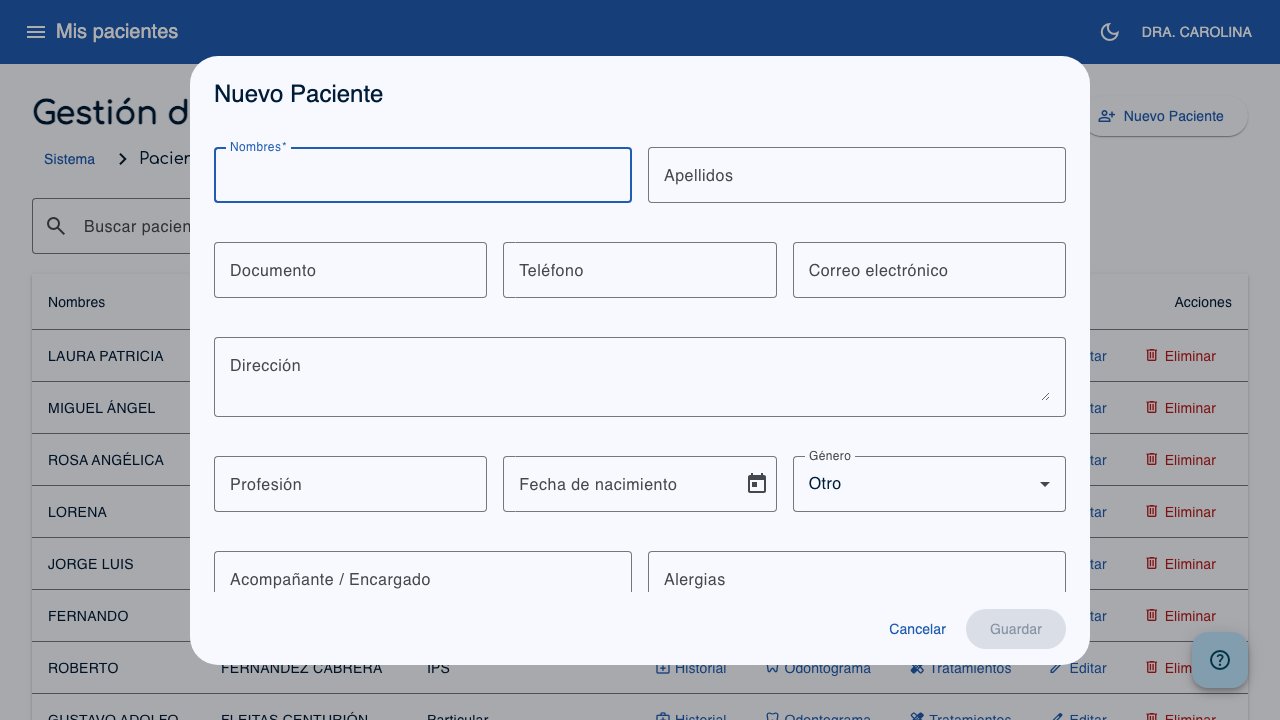
- **First name** (required): The patient's first name(s).
- **Last name**: The patient's last name(s).
- **ID document**: Identity card or document number.
- **Phone**: Phone number.
- **Email**: Email address.
- **Address**: Street address.
- **Occupation**: Profession or occupation.
- **Date of birth**: Select it from the calendar.
- **Gender**: Male, Female, or Other.
- **Companion / Guardian**: Companion's name.
- **Allergies**: Known allergies.
- **Health insurance**: Select one from the list or type a new one.
- **Contract number**: The insurance contract number (not available if you select "Private").
- Click Save.
Tip
If the health insurance is not in the list, just type its name and it will be added automatically.
Edit a patient
- In the patient list, click the Actions menu (three-dot icon) of the patient you want to edit.
- Select Edit.
- Change the data you need.
- Click Update.
Delete a patient
- In the patient list, click the Actions menu of the patient.
- Select Delete.
- Confirm the deletion in the confirmation dialog.
Important
When you delete a patient, all of their linked clinical records are also deleted. This action cannot be undone.