Clinical Records
Clinical records let you document each medical visit. Here you record the reason for the visit, diagnoses, prescriptions, requested studies, and medical leaves.
How to access a patient's clinical records
- Go to Patients from the side menu.
- Find the patient in the list.
- Click the patient's clinical record icon (the document icon).
What you will see on the clinical records screen
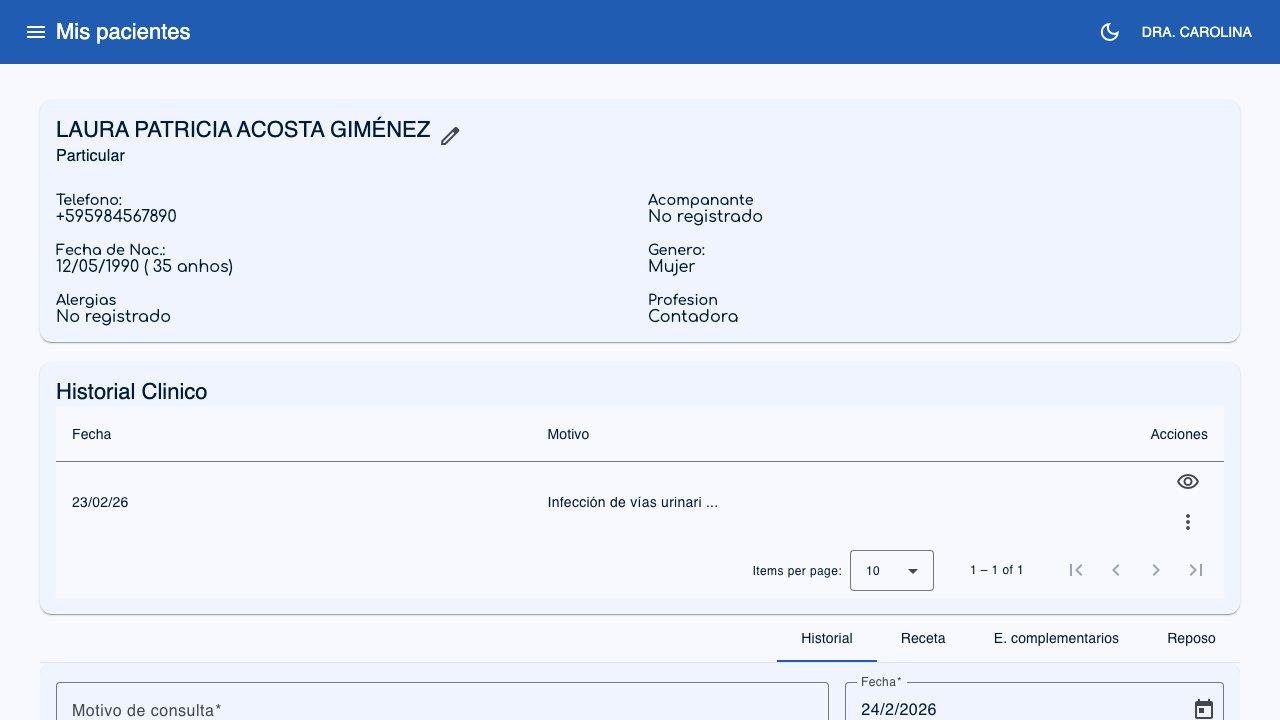 1
2
3
4
1
2
3
4
- Patient data (1): Card with the patient's name, health insurance, phone, allergies, and other data. You can edit it with the edit button, or download all of the patient's data with the export button (see Export patient data).
- View detail (2): Opens the full detail of a visit.
- Actions (3): Menu to edit, delete, or view the documents (prescription, study, medical leave).
- Form tabs (4): When you create or edit, you will see the Record, Prescription, Complementary Studies, and Medical Leave tabs.
List of clinical records
The table shows all of the patient's visits:
- Date: When the visit took place.
- Reason: Why the patient came.
- Actions: Buttons to view detail, edit, delete, or open the prescription/medical leave/study.
Create a clinical record (step by step)
- From the patient's list of clinical records, click New record.
- Complete the form tabs:
Tab: Record
- Treatment (optional): If the patient has ongoing treatments, you can link this visit to one of them. This lets you track progress. When you link a treatment in a new record, the reason is filled in automatically (for example, "Root canal treatment on tooth 14, visit 3") if you have not typed anything yet. You can edit it freely.
- Reason (required): Write the reason for the visit (for example, "Routine check-up", "Sore throat").
- Date: Date of the visit. By default, today's date appears.
- ICD-10 diagnoses: Search and add international diagnosis codes (see the next section).
- Vital signs (if enabled in the settings):
- BP (Blood pressure)
- HR (Heart rate)
- RR (Respiratory rate)
- Temperature
- Custom fields: The fields you have configured in the Record schema (for example, "History", "Physical exam", "Plan").
Tab: Prescription
- RP: Write the medical prescription.
- Instructions: Directions for the patient (for example, "Take every 8 hours for 7 days").
See Prescriptions for more details.
Tab: Complementary Studies
- Studies: Describe the studies you request from the patient (for example, "Complete blood count", "Abdominal ultrasound").
See Complementary studies for more details.
Tab: Medical Leave
- Start: When the medical leave begins.
- End: When the medical leave ends.
- Cause: Reason for the medical leave.
- Place: Where the patient must rest (for example, "Home").
See Medical leaves for more details.
- Click Save.
Tip
You do not have to complete every tab. If the patient does not need a prescription or medical leave, just leave those tabs empty.
ICD-10 diagnoses
What is ICD-10?
ICD-10 (International Classification of Diseases, 10th revision) is a worldwide standard from the World Health Organization (WHO) that assigns a unique code to each disease or medical condition. For example, J06 = "Acute upper respiratory infection". Using these codes makes communication between professionals easier and supports management with insurers.
The system includes the complete list of ICD-10 diagnosis codes. This lets you record standardized diagnoses at each visit.
How to add an ICD-10 diagnosis
- In the Record tab, find the ICD-10 diagnoses field.
- Start typing the name of the disease or the code (for example, "diabetes", "J06", "flu").
- After you type at least 2 letters, a list of suggestions appears with the code and the description.
- Click the diagnosis that applies to add it.
- You can add several diagnoses to the same visit.
How to remove a diagnosis
Each diagnosis you add appears as a label with an X. Click the X to remove it.
Tip
You can search by code (for example, "J06") or by description (for example, "respiratory infection"). The search ignores capital letters and accents, so "faringitis" and "Faringítis" show the same results.
Edit a clinical record
- In the list of clinical records, click the actions menu and choose Edit.
- Change the data you need.
- Click Update.
Time limit to edit
Clinical records can only be edited within 24 hours after they are created. After that period, the record becomes a permanent entry and cannot be changed. This protects the integrity of the clinical record. If you need to correct something after 24 hours, create a new record with the corrections.
Delete a clinical record
- In the actions menu, choose Delete.
- The system will ask you to confirm before deleting.
Important
When you delete a clinical record, the associated prescription, complementary studies, and medical leave are deleted too. This action cannot be undone.
View the detail of a visit
To review a complete past visit:
- Click the view detail icon in the list of clinical records.
- A window opens with all the information: reason, ICD-10 diagnoses, vital signs, custom fields, and associated documents.
- The ICD-10 diagnoses appear as labels that show the code and the full description.
Export patient data
You can download all of the patient's data as a JSON file: personal data, clinical records, treatments, and appointments.
- On the Patient data card, click the download icon (next to the edit icon).
- The file downloads automatically, named
paciente-lastname_firstname-date.json.
What it is for
Use this option to give the patient a complete copy of their clinical record on request.