PDF Image Settings
When you generate a PDF document from the system (a clinical record, a prescription, a complementary study or a medical leave), you can add your professional logo and a letterhead. The logo appears at the top of records and medical leaves; the letterhead appears in the header of prescriptions and complementary studies. This gives a professional look to the documents you give your patients.
Where the logo and letterhead appear
The PDF documents you can generate from clinical records include:
- Clinical records: The logo appears at the top.
- Medical leaves: The logo appears at the top.
- Prescriptions: The letterhead appears in the header of the sheet.
- Complementary studies: Same as prescriptions.
How to open these settings
- Go to the side menu.
- Click Settings.
- Select PDF Images.
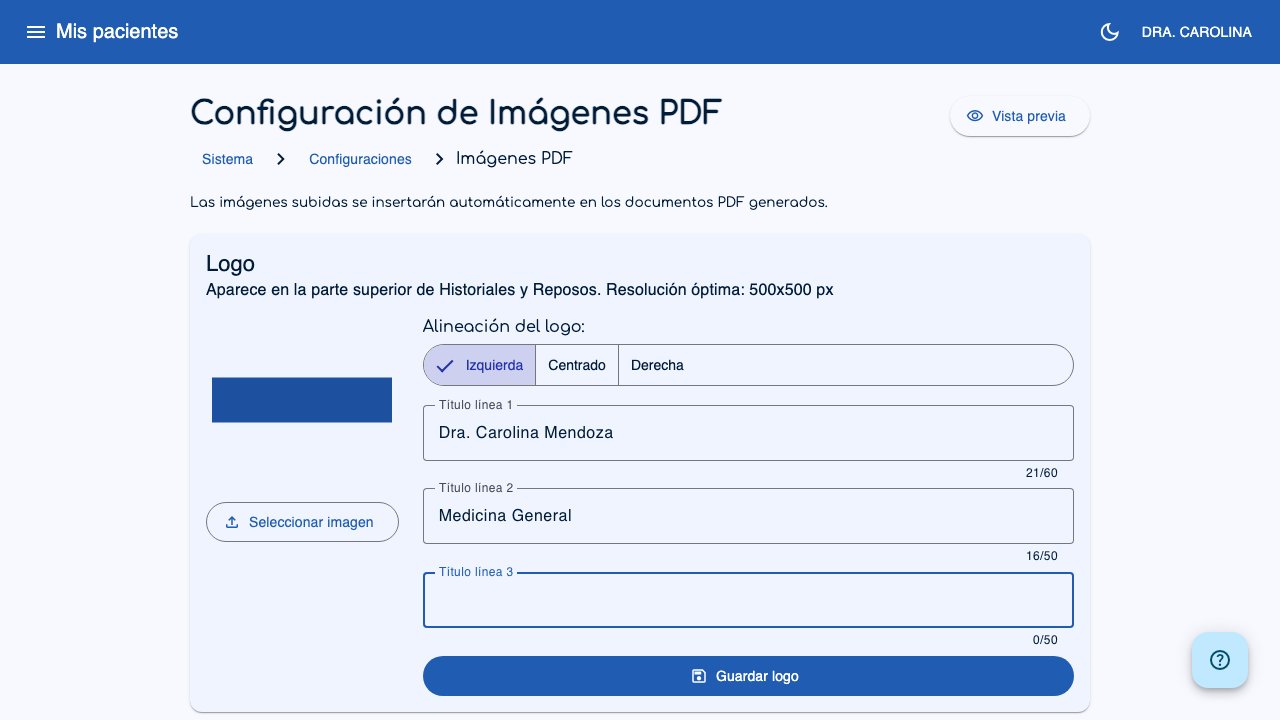 1
2
3
4
5
1
2
3
4
5
- Preview (1): Opens a window so you can see how the PDF will look.
- Select image (2): Uploads the logo from your computer.
- Alignment (3): Choose where the logo appears (left, centered or right).
- Titles (4): The text that goes with the logo (your name, specialty, and so on).
- Save logo (5): Saves the changes.
Logo: step by step
The logo appears at the top of the clinical records and medical leaves you generate.
Step 1: Upload your logo
- In the Logo section, click the Select image button.
- A window opens so you can find the file on your computer.
- Select the image of your logo.
Image requirements
- Accepted formats: PNG, JPEG or WebP.
- Maximum size: 2 MB.
- Recommended size: 500x500 pixels or similar. Do not worry if the size is not exact. The system adjusts the image.
Once you select the image, you see it in the preview.
Step 2: Choose the alignment
Below the image, you see three buttons to choose where the logo appears in the PDF:
| Alignment | How it looks in the PDF |
|---|---|
| Left | The logo appears on the left and the titles (your name, specialty) on the right. |
| Centered | The logo appears centered at the top. No titles are shown. |
| Right | The logo appears on the right and the titles on the left. |
Step 3: Add titles (optional)
If you choose left or right alignment, three text fields appear so you can customize the header of the PDF. These titles show next to the logo:
- Title line 1: Usually your name (e.g.: "Dr. Maria Gonzalez"). Maximum 60 characters.
- Title line 2: Your specialty (e.g.: "General Medicine"). Maximum 50 characters.
- Title line 3: Extra information (e.g.: "Prof. License No. 12345"). Maximum 50 characters.
Tip
You do not have to fill in all three lines. You can use only one or two if you prefer.
If you choose centered alignment, the title fields do not appear because the logo takes up the whole header.
Step 4: Save
Click Save logo to apply the changes. From now on, your clinical records and medical leaves will include your logo.
Change the logo
If you already have a logo uploaded and you want to change the alignment or the titles without uploading a new image, just edit the fields and click Save logo.
If you want to change the image, click Select image again and choose the new image.
Remove the logo
If you no longer want a logo on your PDFs, click the Delete button in the Logo section. It is deleted immediately, with no confirmation step.
Letterhead: step by step
The letterhead is an image that appears in the header of prescriptions and complementary studies. People usually use it to add contact details, an address or legal information.
Step 1: Upload the letterhead
- In the Letterhead section (below the logo), click Select image.
- Select the letterhead image from your computer.
Image requirements
- Accepted formats: PNG, JPEG or WebP.
- Maximum size: 2 MB.
- Recommended size: 800x400 pixels (wide, horizontal format).
Step 2: Save
Click Save letterhead to apply the change.
Remove the letterhead
Click Delete in the Letterhead section if you no longer want it on your PDFs.
Preview: check how it looks
Before you generate a real document, you can see how the PDF will look with your logo and letterhead:
- Click the Preview button (in the top-right corner of the page).
- A window opens where you choose the document to view. Record and Medical leave are always available; Prescription and Complementary study only appear once you have uploaded a letterhead. The sample shows your logo or your letterhead, depending on the document.
- Close the window when you finish reviewing.
Tip
Use the preview after each change to make sure everything looks the way you expect before you generate real documents.
Full flow example
Imagine you want your medical leaves to look like this: your logo on the left, your name and specialty on the right. And you want your prescriptions to include a strip at the top with your office contact details.
- Go to Settings > PDF Images.
- Click Select image and upload your office logo.
- Select Left alignment.
- In the titles, write:
- Line 1: "Dr. Maria Gonzalez"
- Line 2: "Pediatrics"
- Line 3: "Prof. License No. 12345"
- Click Save logo.
- Scroll down to the Letterhead section and upload an image with your office details (address, phone, email).
- Click Save letterhead.
- Click Preview to check that everything looks good.
Done. From now on, when you generate a clinical record or a medical leave, the PDF will include your logo; and when you generate a prescription or a complementary study, it will include the letterhead.