Office Hours
Schedules define the days and hours you see patients. Each schedule determines how many appointments are available based on the duration you set.
How it works
Think of a schedule as a block of appointment slots. For example: "Monday and Wednesday from 08:00 to 12:00 in Office 1, with 15-minute appointments each". The system automatically calculates how many patients you can see in that block.
View your schedules
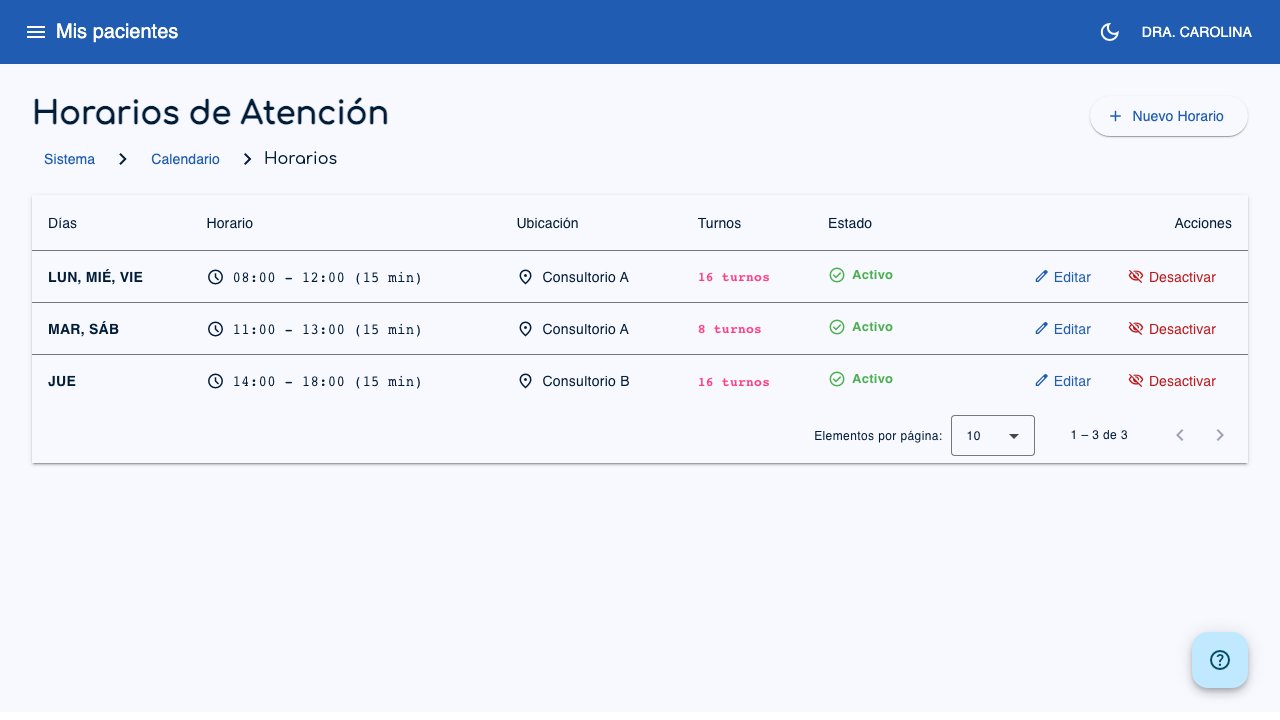
Go to Calendar > Office Hours from the side menu to see all your schedules.
 1
2
3
1
2
3
- New Schedule (1): Creates a new schedule.
- Edit (2): Modifies an existing schedule.
- Deactivate (3): Temporarily deactivates a schedule.
The table shows:
- Days: The days of the week the schedule applies to.
- Hours: Time range (start - end) and minutes per patient.
- Location: Place of care.
- Appointments: Number of appointments available based on the duration.
- Status: Active or Inactive.
Create a schedule
- Click New Schedule.
-
Complete the form:
- Days of the week (required): Select one or more days. For example, if you see patients on Monday, Wednesday, and Friday with the same schedule, you can select all three days and the system will create a single schedule that applies to all of them.
- Location (required): Where you see patients (e.g.: "Office 1", "Central Hospital"). Maximum 64 characters.
- Start time (required): Time in HH:MM format (e.g.: 08:00).
- End time (required): Time in HH:MM format (e.g.: 12:00). It must be after the start time.
- Minutes per patient: Duration of each appointment (between 5 and 120 minutes, in steps of 5). Defaults to 15 minutes.
- Active schedule: Turn the schedule on or off.
-
As you fill in the fields, you will automatically see the Schedule capacity: how many appointments fit based on the time range and the minutes per patient.
-
Click Create.
Example
A schedule from 08:00 to 12:00 with 15 minutes per patient generates 16 appointments. If you select Monday, Wednesday, and Friday, you will have 16 appointments available on each of those days.
Tip
In addition to the regular appointments, up to 5 extra appointments are added automatically to handle emergencies or patients who arrive without an appointment.
Edit a schedule
- In the list, click the Edit icon of the schedule.
- Change the data you need (location, hours, minutes per patient, status).
- Click Update.
Important
The days of the week cannot be changed after you create the schedule. If you need to change the days, deactivate the current schedule and create a new one with the correct days.
Activate / Deactivate a schedule
You can deactivate a schedule temporarily without deleting it. This is useful if, for example, you stop seeing patients in one office for a while but plan to return:
- In the Actions menu, select Deactivate or Activate.
- Inactive schedules appear in gray and do not allow you to schedule new appointments.
Important
You cannot create two active schedules that overlap on the same day and time range. If the system detects a conflict, it will warn you before you save.