Appointment Management
Appointments are your patients' visits. You can create them, change their status, and track them from the appointment list, the weekly view, or the monthly view.
Appointment list
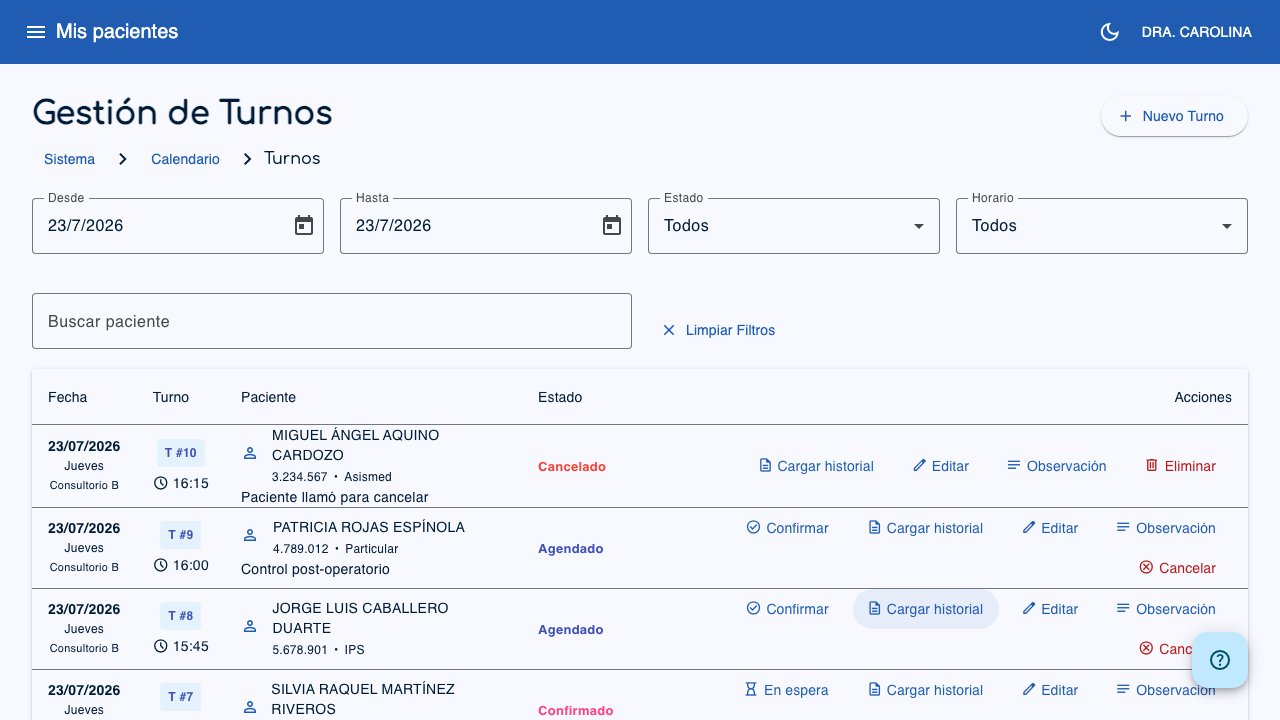
Go to Calendar > Appointments from the side menu. Week View and Month View each have their own shortcut in the same Calendar submenu.
 1
2
3
1
2
3
- New Appointment (1): Starts the appointment creation wizard.
- From filter (2): Start date of the range.
- To filter (3): End date of the range.
Filters
Use the filters at the top to find appointments:
- From / To: Date range (by default it shows only the current day).
- Status: Filter by appointment status (All, Scheduled, Confirmed, Waiting, Attended, Cancelled).
- Schedule: Filter by one of your configured schedules.
- Search patient: Type a name or ID document to filter the appointments of one specific patient.
- Clear filters: Resets the filters to their default values.
Table columns
- Date: Appointment date with the schedule location.
- Appointment / Time: Appointment number and calculated time.
- Patient: Patient name, ID document, and health insurance. Shows notes if there are any.
- Status: Current status with distinct colors.
- Actions: Context buttons based on the status.
Appointment statuses
Appointments follow a status flow:
| Status | Description | Color |
|---|---|---|
| AG (Scheduled) | Newly created appointment | Blue |
| CO (Confirmed) | Patient confirmed attendance | Green |
| ES (Waiting) | Patient arrived and is waiting for care | Yellow |
| AT (Attended) | Consultation finished | Gray |
| CA (Cancelled) | Cancelled appointment | Red |
Available actions
Depending on the appointment status, you will see different action buttons:
- Confirm / Waiting / Attended: Moves the appointment to the next status in the AG → CO → ES → AT flow. The button changes name based on the current status:
- If it is Scheduled, the button says Confirm (moves to Confirmed).
- If it is Confirmed, the button says Waiting (moves to Waiting).
- If it is Waiting, the button says Attended (moves to Attended, finishing the consultation).
- Load record: Opens the patient's clinical record to document the consultation directly from the appointment (professionals only).
- Call: Sends a notification to the calling system / waiting room to call the patient (only today's appointments in "Waiting" status; requires the calling system feature to be active).
- Note: Adds or changes notes about the appointment.
- Cancel appointment: Cancels an appointment that has not been attended.
- Delete appointment: Deletes an appointment that was already cancelled.
Create an appointment
The creation process follows a multi-step wizard:
Step 1: Select patient
Type the patient's name (minimum 2 characters) and select one from the suggestions list.
Step 2: Select schedule
Choose one of your active schedules from the drop-down menu.
Step 3: Select date
Select the appointment date in the calendar. Dates with an absence recorded appear blocked.
Step 4: Select the appointment time
A grid shows the available and taken appointments. Select a free appointment.
Step 5: Treatment (optional)
If the selected patient has ongoing treatments, a selector appears to link the appointment to the treatment. This lets the whole team see the context of the visit.
Step 6: Notes
Optionally, add notes about the appointment.
Tip
If you link a treatment in the previous step, the notes are filled in automatically with the treatment title and the session number. You can edit that text freely before saving.
Click Create Appointment to confirm the appointment, or Schedule and create another if you need to book several appointments in a row without leaving the wizard.
Weekly view
Open Week View from the Calendar submenu in the side menu.
 1
2
3
1
2
3
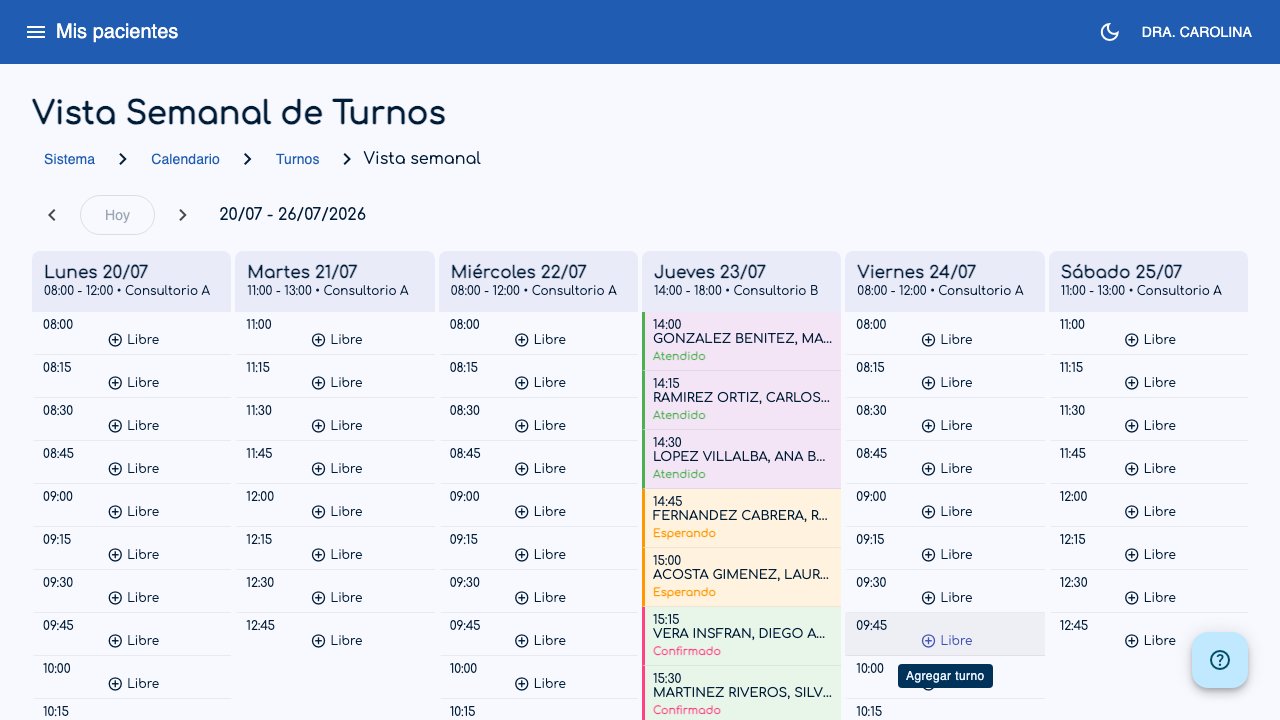
- Previous week (1): Goes to the previous week.
- Today (2): Returns to the current week.
- Next week (3): Goes to the next week.
The weekly view shows a grid with:
- Columns: One for each schedule active on that day.
- Rows: Each available appointment with its time and assigned patient (if any).
- Navigation: Use the arrows to change weeks, or click Today to return to the current week.
Days with an absence recorded show a notice and do not allow you to schedule appointments.
Tip
You can also start a new appointment by clicking directly on a schedule/day in the grid: the wizard will pre-select that schedule and the first available date, saving you steps.
Important
Appointments can only be created within your configured schedules and on dates without an absence recorded.
Monthly view
Open Month View from the Calendar submenu in the side menu.
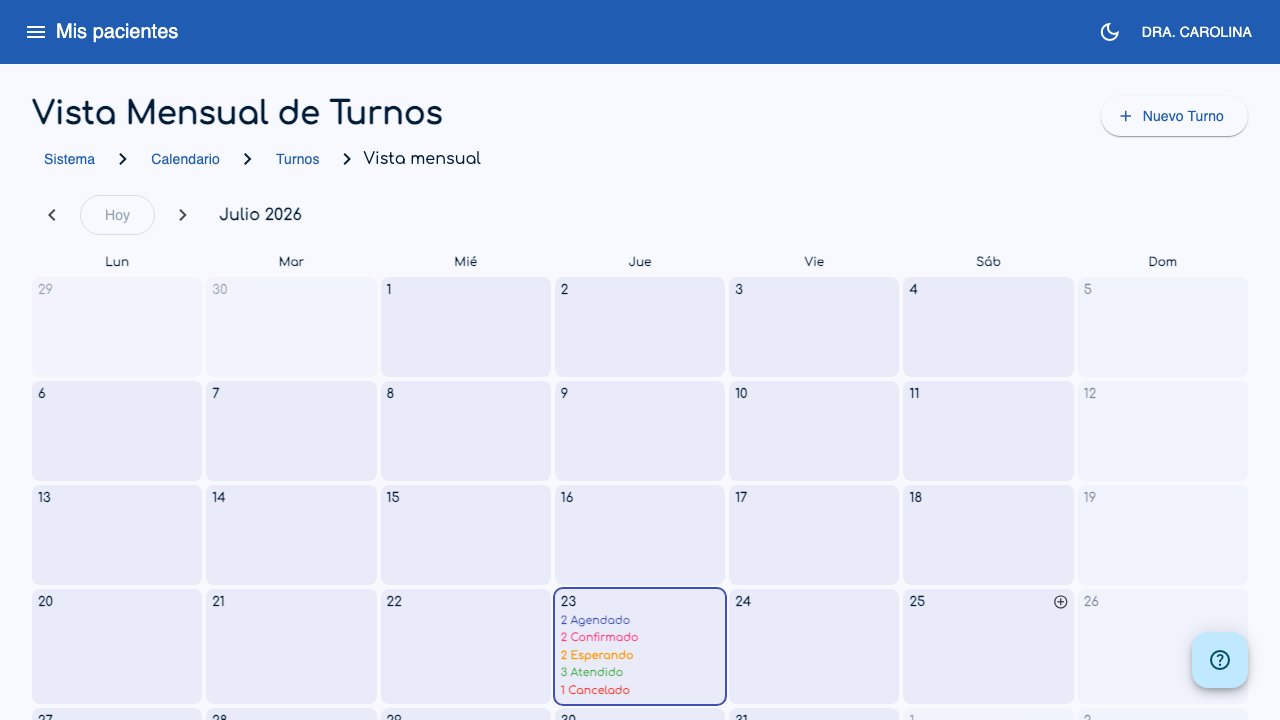
The monthly view shows a calendar with a summary of each day:
- Number of appointments by status: Each day shows how many appointments it has in each status (e.g.: "3 Scheduled", "1 Attended").
- Absences: Days with an absence recorded show a notice instead of the appointment summary.
- Navigation: Use the arrows to change months, or click Today to return to the current month.
- View the day: Click a day to go to the appointment list for that date.
- New Appointment: Same as in the weekly view, you can create an appointment directly by choosing a day, with the schedule and date already pre-selected.