Billing
Billing lets you issue sales documents, record purchases, manage suppliers, and check the balance of your documents.
Permissions
The Professional and the Assistant can create and operate invoices, receipts, and credit notes. Only the Professional can edit tax data, timbrados, and suppliers.
Before you start
To issue documents, the Professional must complete:
- The issuer's Tax data.
- At least one valid Timbrado.
Without them, the system does not allow you to confirm an invoice.
How to access
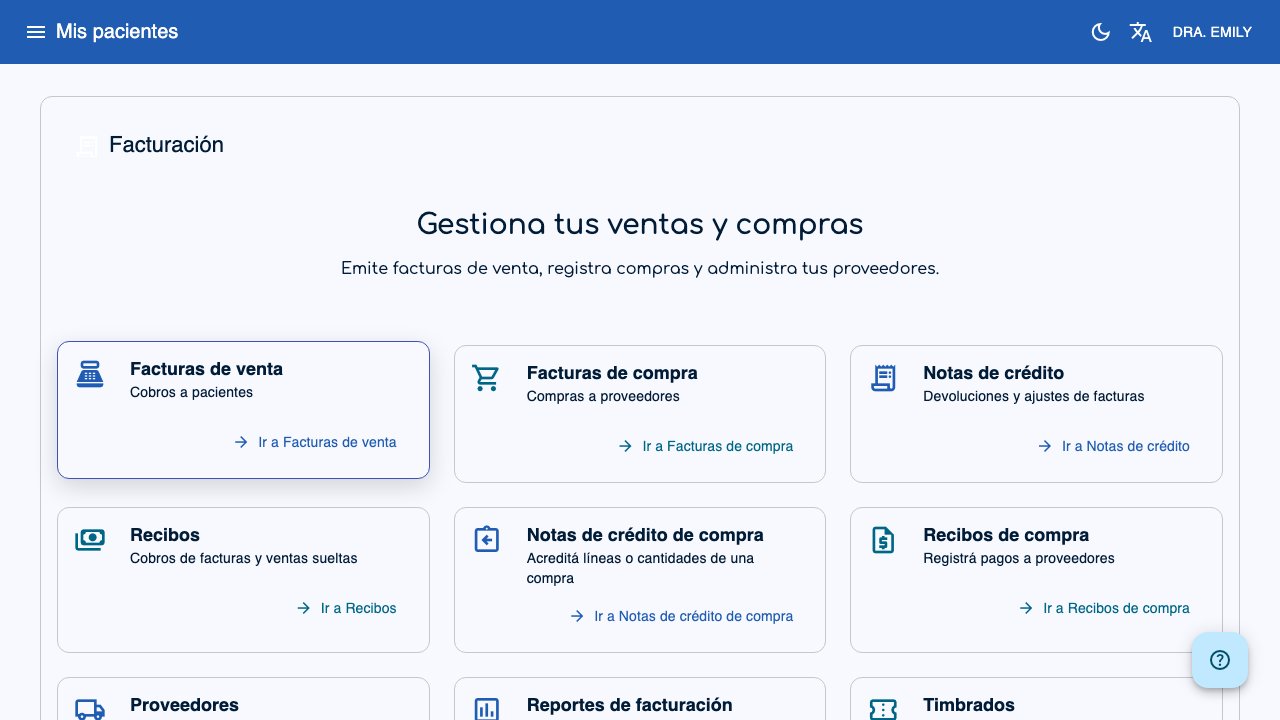
In the side menu, select Billing. The main screen shows Sales invoices, Purchase invoices, Credit notes, Receipts, Suppliers, Reports, Timbrados, and Tax data.
Tax data
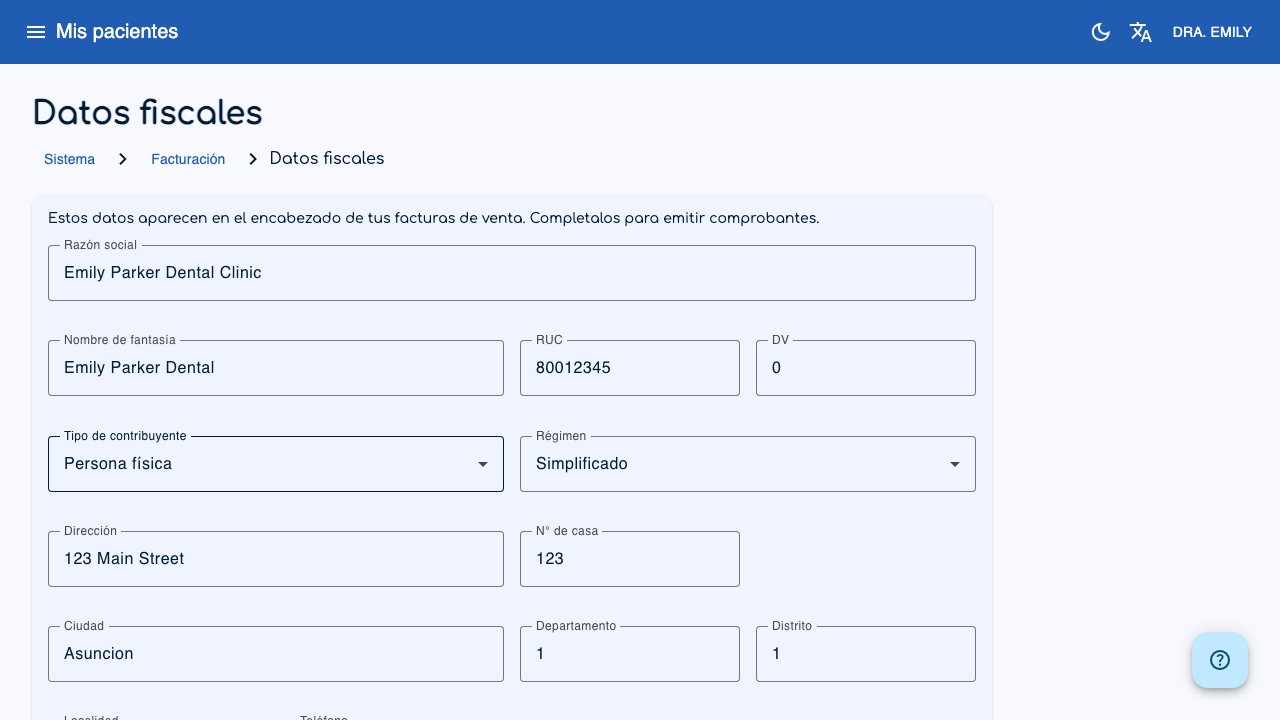
Go to Billing > Tax data and complete:
- RUC and check digit (DV).
- Legal name and trade name.
- Taxpayer type and regime.
- Address: house number, department, district, locality, and city.
- Phone and email.
- Economic activity code and description.
These data appear on sales invoices. Only the Professional can save them.
Timbrados
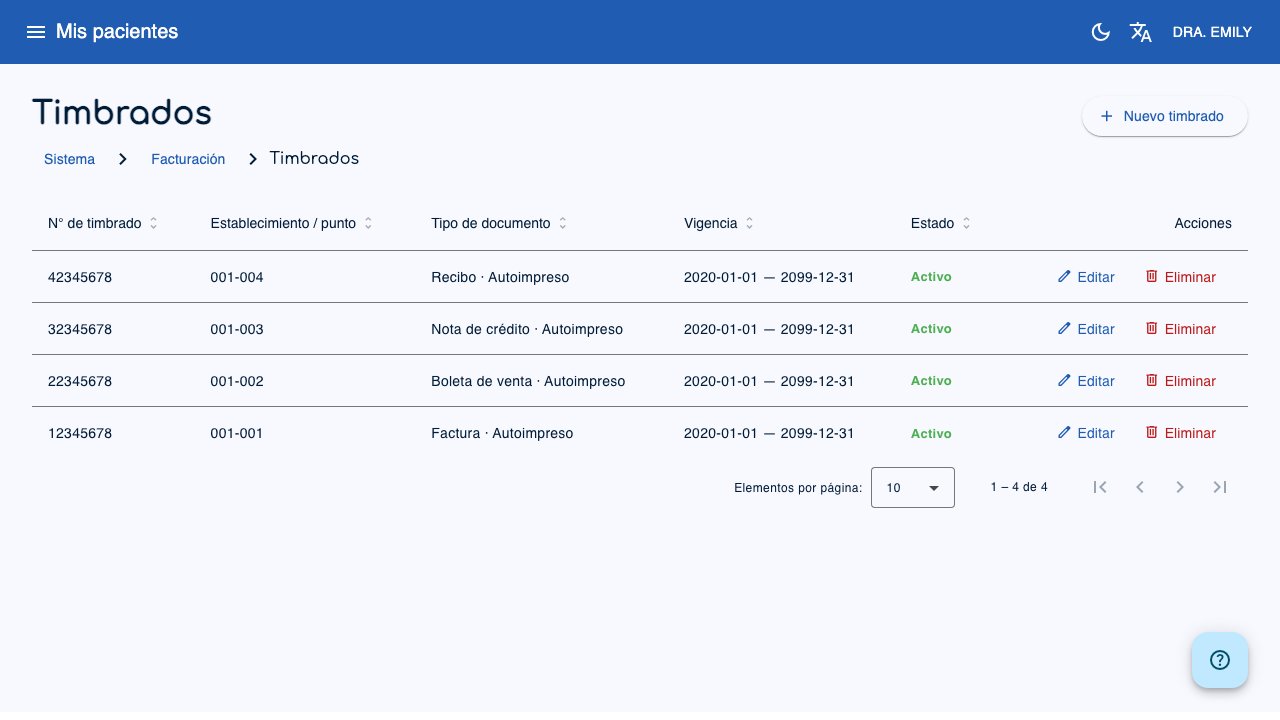
A timbrado is the tax authorization for printing documents. Go to Billing > Timbrados.
Each timbrado has:
- Document type: Invoice, Sales receipt, Credit note, or Receipt.
- Mode: Self-printed or Pre-printed.
- Timbrado number.
- Establishment / point: for example
001-001. - Valid from and Valid to.
- Initial number and Final number. A final number of
0means no limit.
With one valid timbrado, the system uses it automatically. If there are several, select one on the document.
For a self-printed timbrado, the system assigns the number when you confirm. For a pre-printed timbrado, enter the number from the printer form.
Suppliers
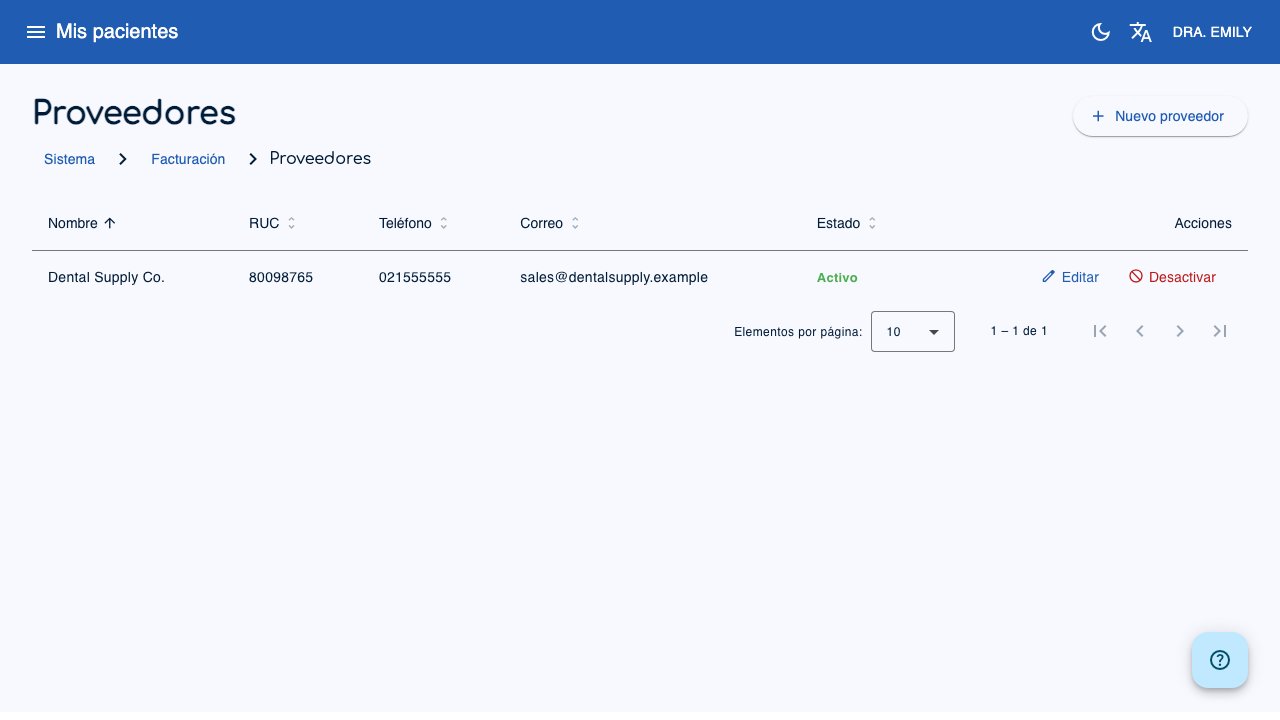
Go to Billing > Suppliers to register who you buy from.
Complete name, RUC, DV, phone, email, and address. The Professional can create and edit suppliers; the Assistant can view them.
Sales invoices
A sales invoice records a charge to a patient or buyer.
- Go to Billing > Sales invoices.
- Click New sales invoice.
- Select a patient or leave No patient.
- Select the document type: Invoice or Sales receipt.
- Complete the buyer data.
- Select the sale condition: Cash or Credit.
- Select the payment method.
- Select the timbrado if there is more than one.
- Set the date and optional notes.
- Add lines with item, quantity, unit price, and VAT.
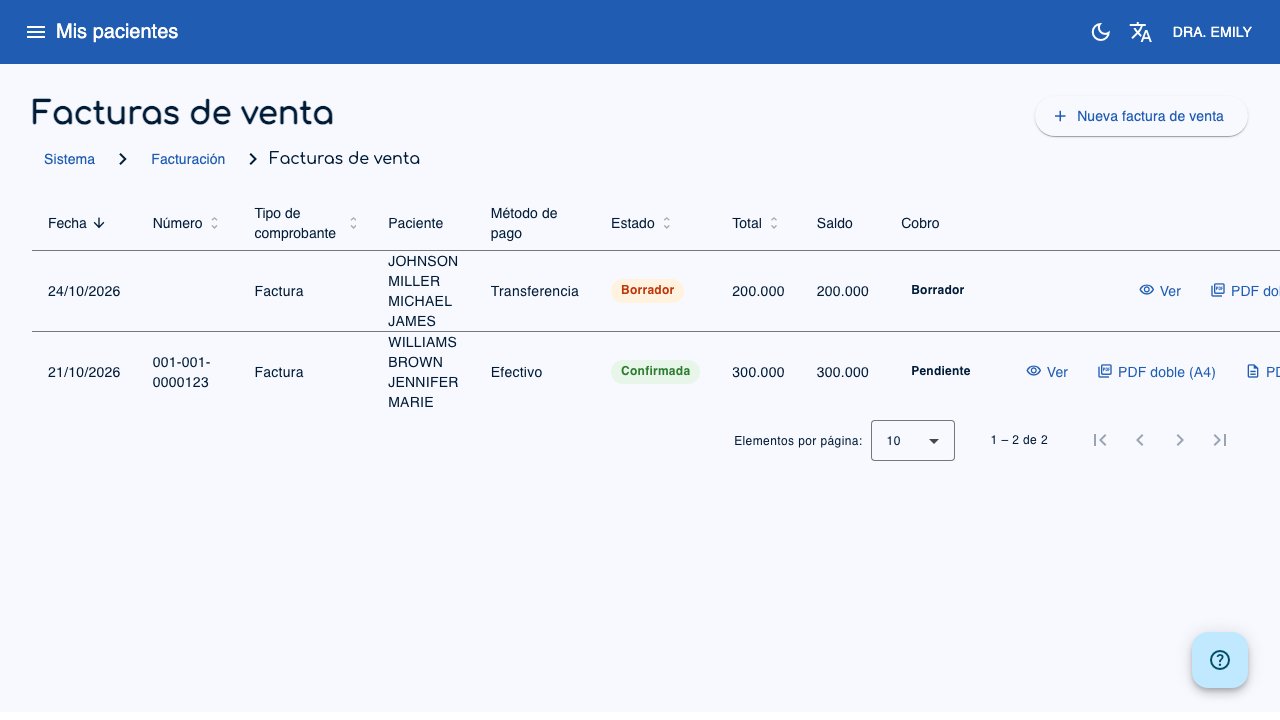
- Save. The invoice starts as Draft.
If you select a patient, you can mark Appointments to bill. The system shows pending appointments from the last 60 days and adds one line per selected appointment.
- Confirm: the invoice becomes read-only and product stock is subtracted.
- Void: product stock is returned. It requires confirmation.
- Delete: only a draft can be deleted.
The list shows the total, balance, and payment status.
Purchase invoices
A purchase invoice records a purchase from a supplier.
- Go to Billing > Purchase invoices.
- Click New purchase invoice.
- Select the supplier.
- Set the sale condition, supplier timbrado, date, and notes.
- Add lines with item, quantity, unit price, and VAT.
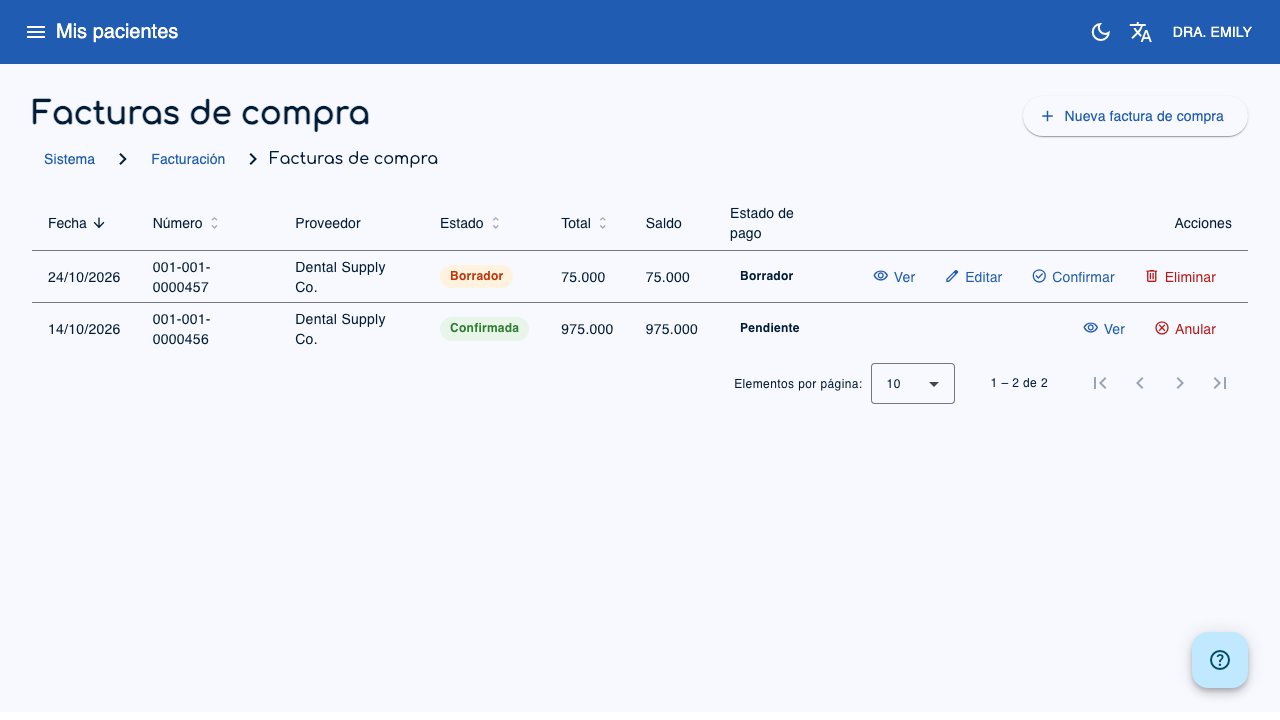
- Save. The invoice starts as Draft.
- Confirm it to add the product stock.
A confirmed invoice cannot be edited. Voiding it reverses the stock entry.
Receipts
Sales receipts
A sales receipt records the payment of an invoice or a standalone sale.
- Go to Billing > Receipts.
- Click New receipt.
- Select Invoice payment or Standalone sale.
- For an invoice payment, select the invoice and the payment amount. The amount cannot exceed the balance.
- For a standalone sale, add lines and payments.
- Confirm the receipt. A standalone sale subtracts stock.
Purchase receipts
A purchase receipt records a payment to a supplier.
- Go to Billing > Purchase receipts.
- Click New purchase receipt.
- Select the original purchase.
- Set the payment amount and reference.
- You can split the payment into several methods. The sum must match the total.
Credit notes
Sales credit notes
A sales credit note credits a confirmed sales invoice. Use it for returns or adjustments.
- Go to Billing > Credit notes.
- Click New credit note.
- Select the confirmed invoice.
- Enter the reason.
- Select the lines and quantities to credit.
- Confirm the note. The credited quantity returns to stock.
Purchase credit notes
A purchase credit note credits lines or quantities of a purchase.
- Go to Billing > Purchase credit notes.
- Click New purchase credit note.
- Select the original purchase.
- Enter the reason and quantities to credit.
- Confirm the note. The stock of the credited products is returned to the supplier.
A confirmed note cannot be edited. Voiding it reverses the stock exit.
Reports
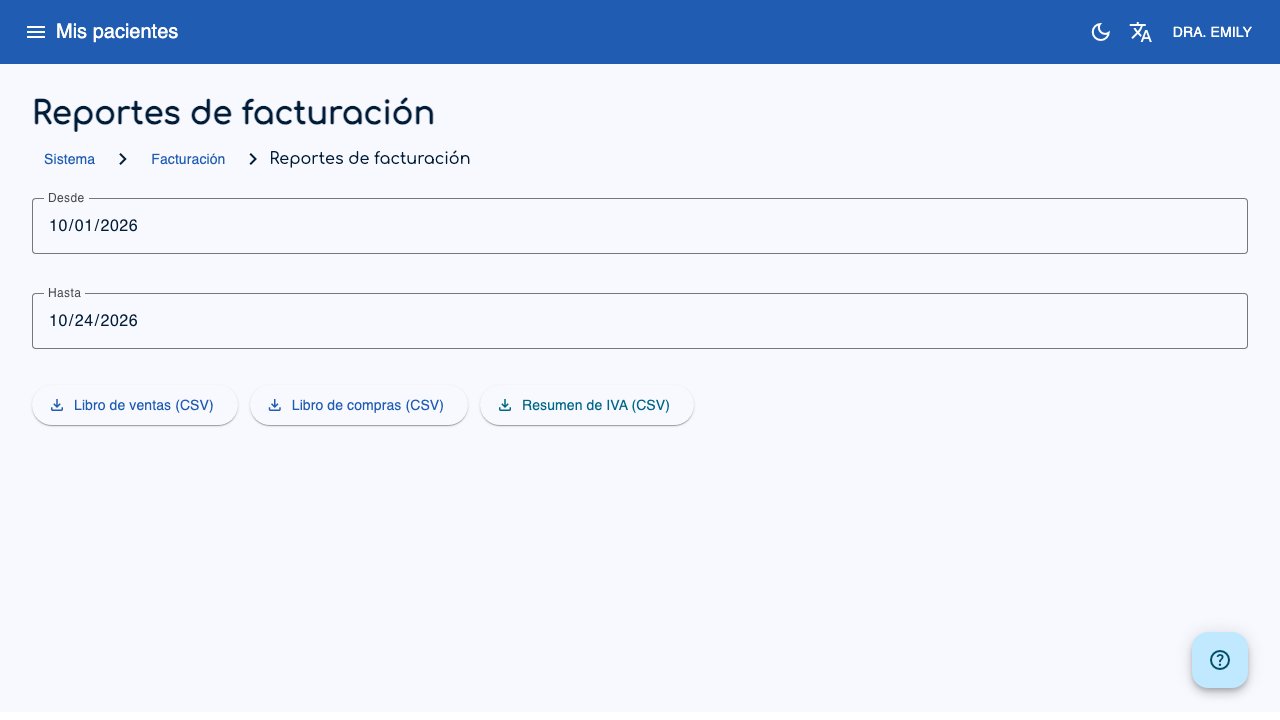
Go to Billing > Reports and select From and To.
You can download:
- Sales book as CSV.
- Purchase book as CSV.
- VAT summary as CSV.
Permissions
| Action | Professional | Assistant |
|---|---|---|
| View tax data, timbrados, suppliers, documents, and reports | Yes | Yes |
| Edit tax data, timbrados, and suppliers | Yes | No |
| Create, edit, confirm, and void invoices, receipts, and credit notes | Yes | Yes |
| Download reports | Yes | Yes |