Inventory
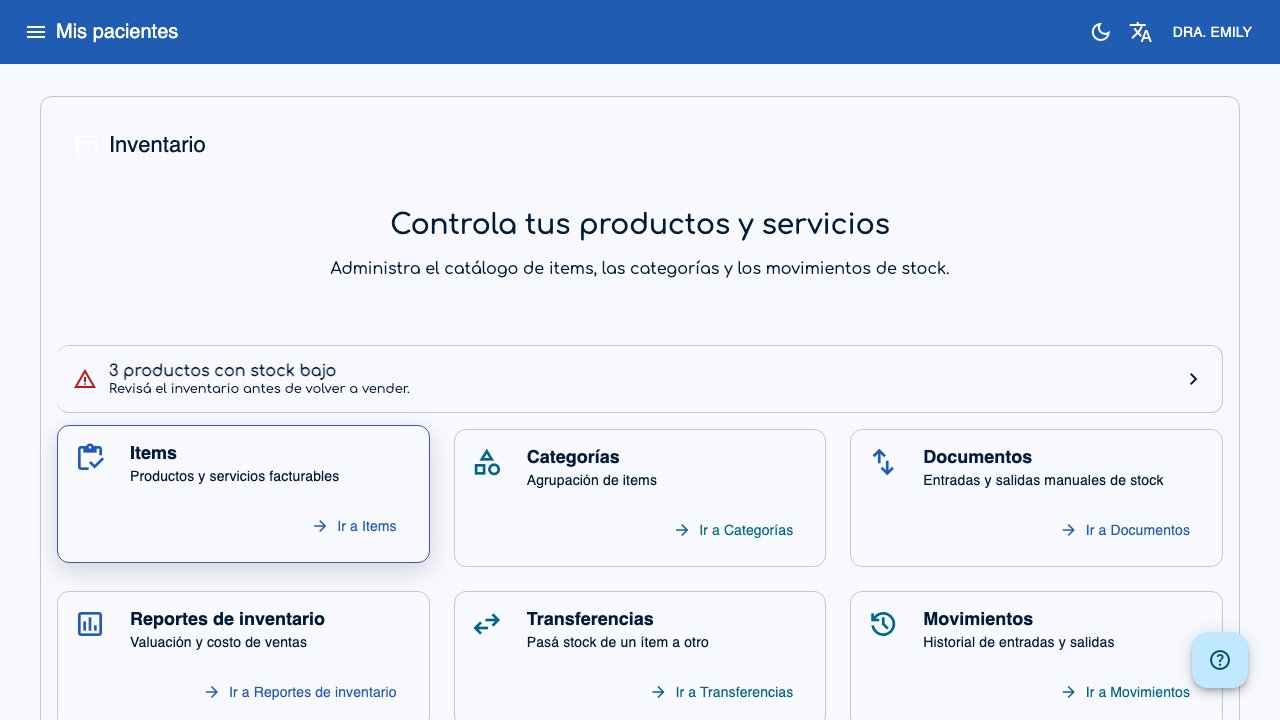
Inventory lets you control the products and services of your practice, the available stock, and stock movements.
Permissions
The Professional can create, edit, and confirm. The Assistant can view the catalog, documents, movements, and transfers.
How to access
In the side menu, select Inventory. The main screen shows Items, Categories, Documents, Movements, Transfers, and Reports.
If any product is at or below its minimum stock, an alert appears at the top.
Items
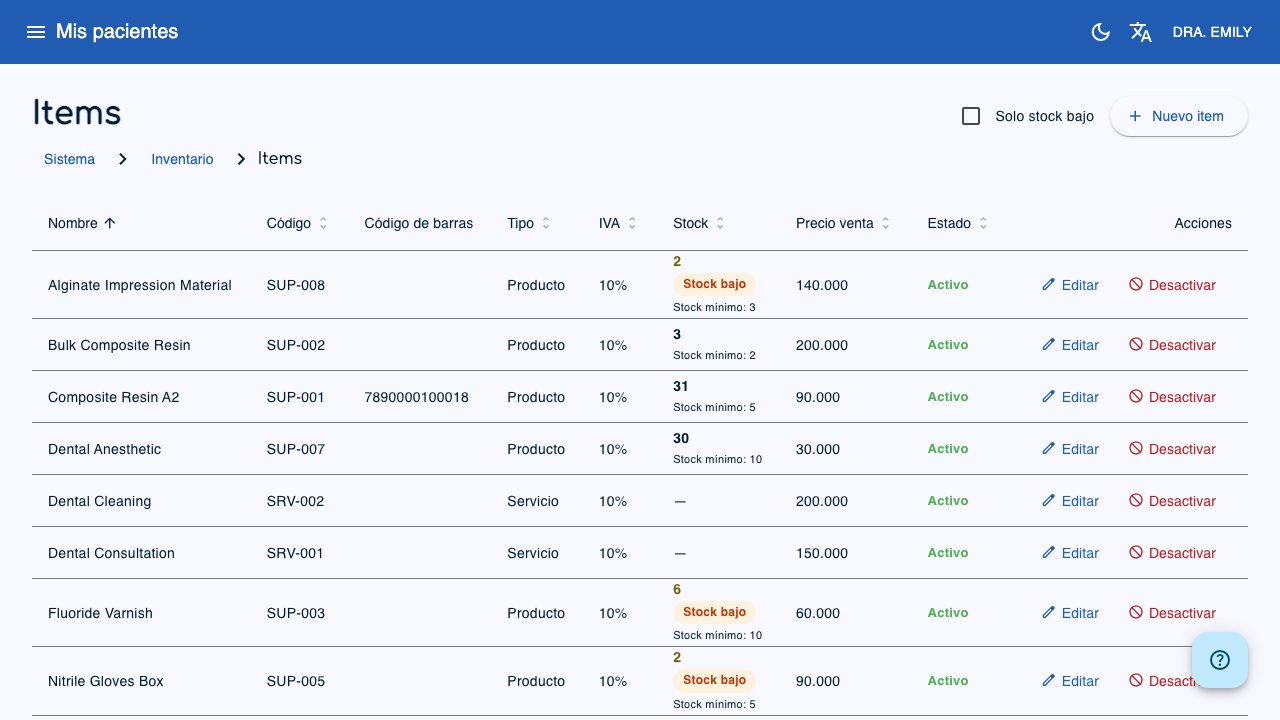
An item is a product or a service that you can bill.
Create or edit an item
- Go to Inventory > Items.
- Click New item or edit an existing item.
- Complete:
- Name.
- Code and Barcode: optional.
- Category: optional.
- Type: Product, Service, or Other.
- VAT: 10%, 5%, or Exempt.
- Unit of measure.
- Purchase price and Sale price.
- Tracks stock: enable it only for products.
- Minimum stock.
- Active.
- Click Save.
Notes:
- A service does not track stock.
- Current stock is read-only. It changes through documents, purchases, sales, standalone sale receipts, credit notes, and transfers.
- Deactivate an item when you stop using it. Do not delete it if it has movements or invoices.
- You cannot turn off stock tracking while the item has stock. Adjust the stock to zero first.
Use Only low stock in the items list to see active products at or below the minimum.
Categories
Categories group items, for example Vaccines, Materials, or Supplies.
- Go to Inventory > Categories.
- Create or edit a category.
- Use Activate or Deactivate to change its state.
Categories are deactivated, not deleted.
Stock documents
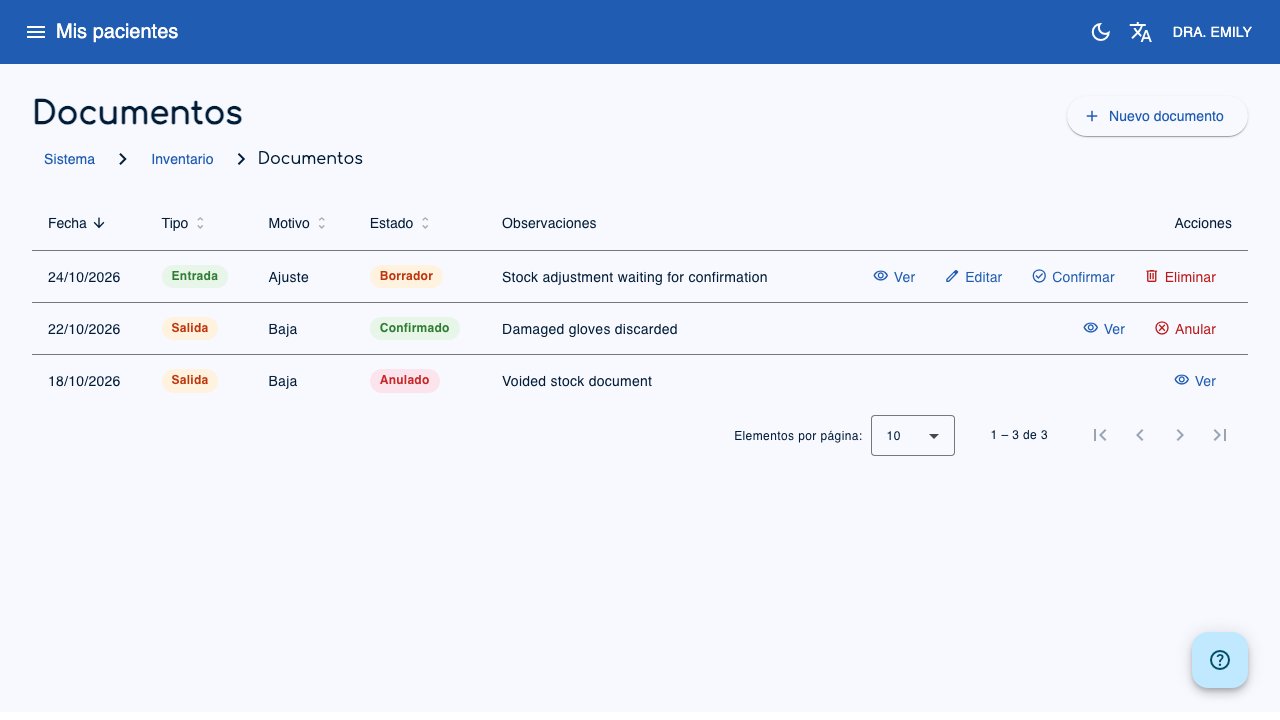
A stock document records a manual entry or exit.
- Go to Inventory > Documents.
- Click New document.
- Select Type: Entry or Exit.
- Set the date, reason, and optional notes.
- Add one or more lines with item, quantity, and unit price.
-
Save. The document starts as Draft.
-
Confirm applies the stock. An entry adds stock; an exit subtracts stock.
- Void reverses the stock of a confirmed document. It requires confirmation.
- Delete is available only for a draft.
A confirmed document cannot be edited.
Movements
Inventory > Movements shows the stock history. It is read-only.
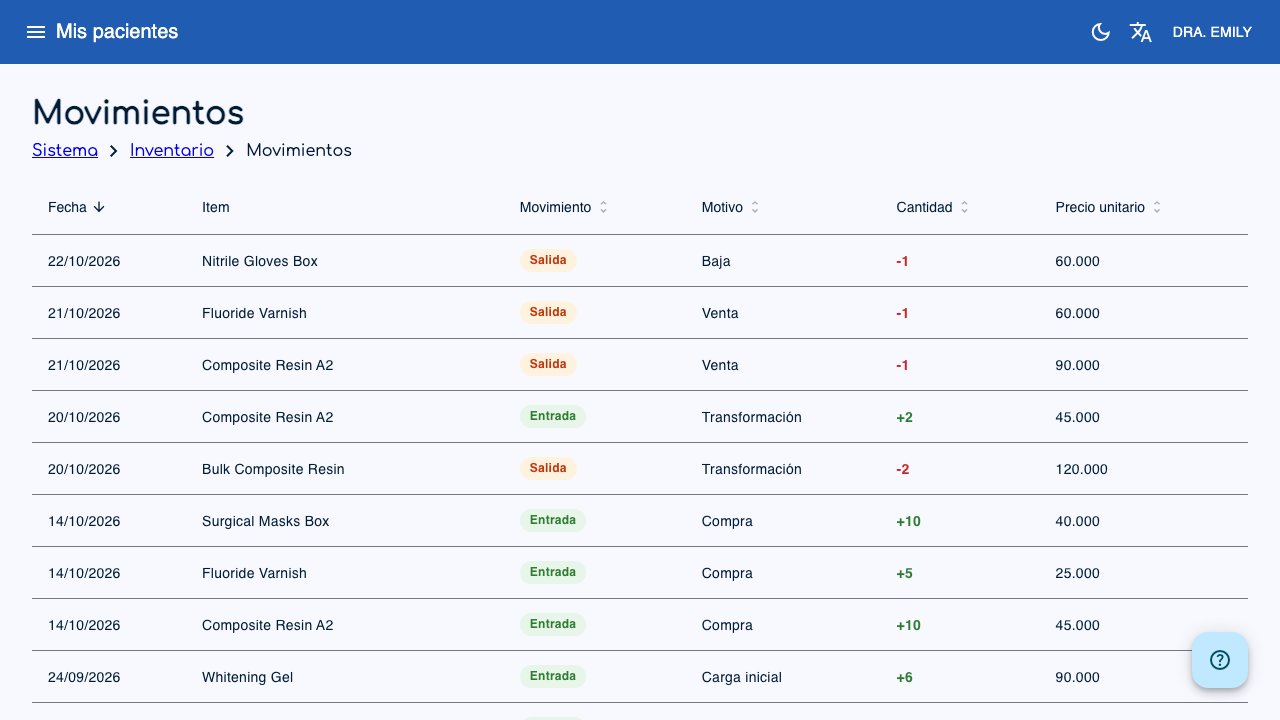
You can review date, item, movement type, reason, quantity, and unit price. Movements come from documents, purchases, sales, standalone sale receipts, credit notes, and transfers.
Transfers
A transfer moves stock from one item to another. For example, from a large container to small containers.
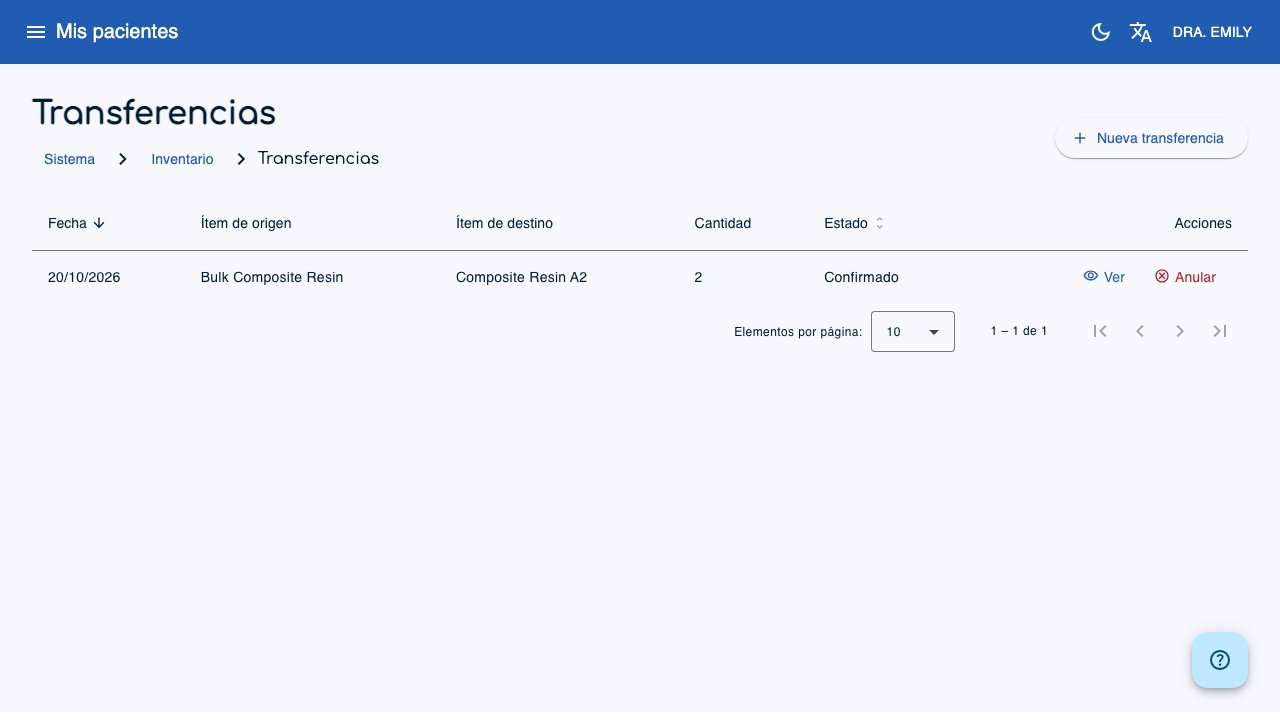
- Go to Inventory > Transfers.
- Click New transfer.
- Select the source and destination items.
- Set quantity, date, and optional notes.
- Save. The transfer starts as Draft.
- Confirm it to apply the stock.
You can edit or delete a draft. A confirmed transfer can be voided; voiding reverses the stock.
Reports
Inventory > Reports downloads two CSV files:
- Valuation: stock value for the period.
- Cost of sales: cost of the products sold in the period.
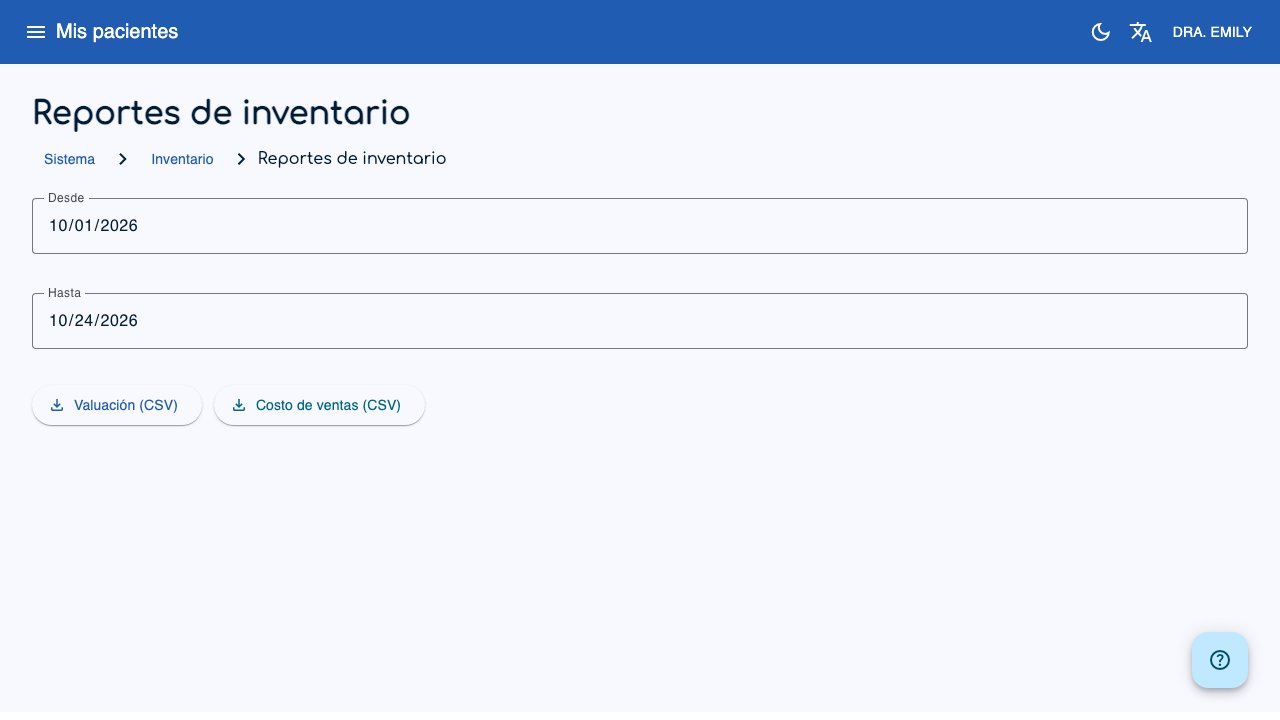
Select From and To before downloading.
Permissions
| Action | Professional | Assistant |
|---|---|---|
| View items, categories, documents, movements, transfers, and reports | Yes | Yes |
| Create or edit items and categories | Yes | No |
| Create, edit, confirm, or void documents and transfers | Yes | Yes |
| Download reports | Yes | Yes |